-
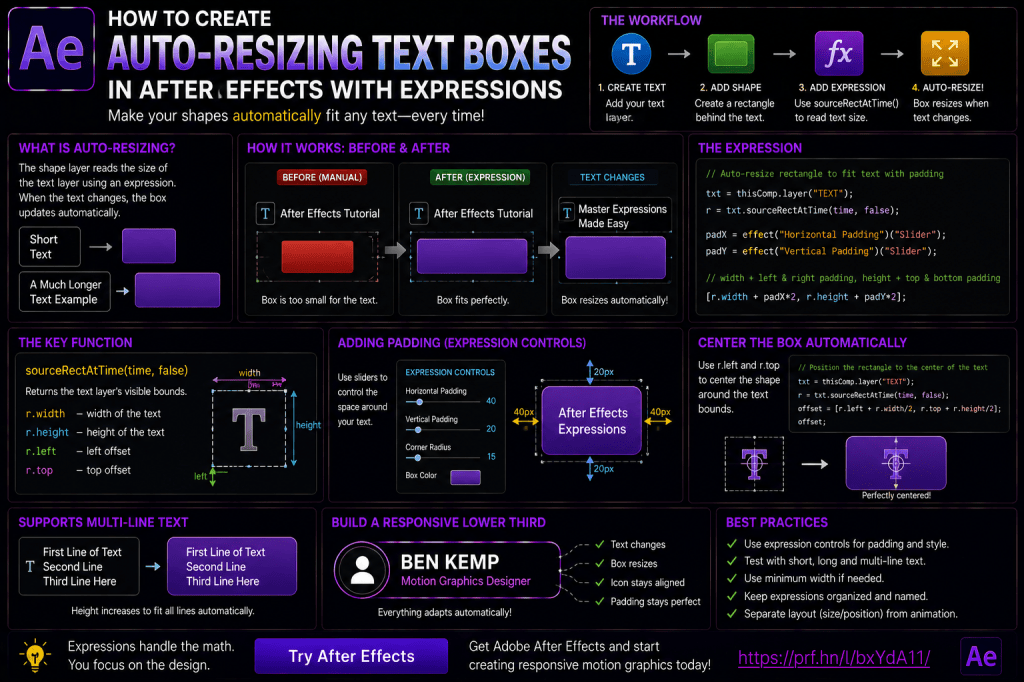 Continue reading →: How to Create Auto-Resizing Text Boxes in Adobe After Effects with Expressions
If you regularly create titles, lower thirds, captions, labels, or Motion Graphics Templates in Adobe After Effects, you’ve probably encountered this problem: You create a text layer. You place a rectangle behind it. Everything looks perfect. Then you change the text. Suddenly, the rectangle is: too short; too wide; too…
-
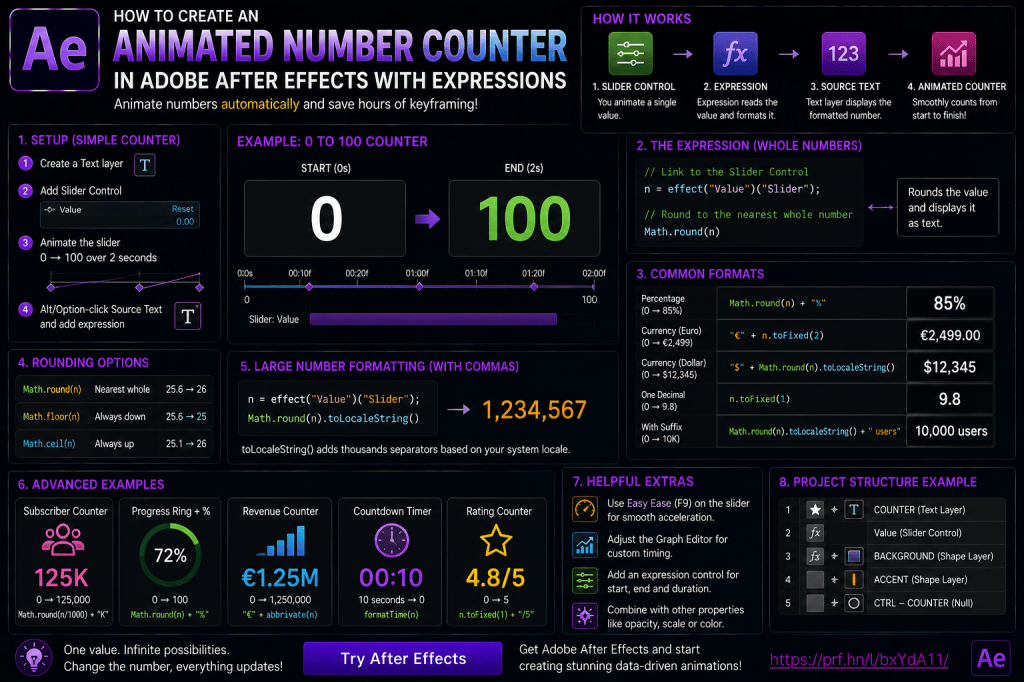 Continue reading →: How to Create an Animated Number Counter in Adobe After Effects with Expressions
Animated numbers appear everywhere in motion graphics. You see them in: financial videos; dashboards; sports graphics; YouTube statistics; social-media posts; product presentations; infographics; business reports; advertising; explainer videos. A number might animate from: 0 → 100 or: €0 → €5,000 or: 0% → 87% or: 1,000 → 1,000,000 You could…
-
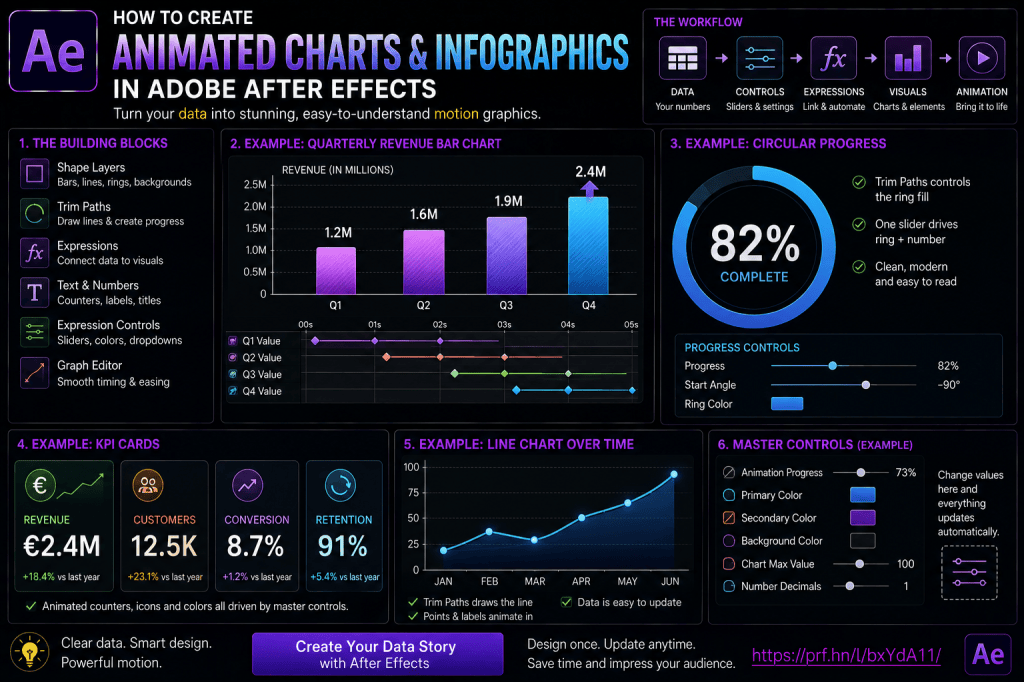 Continue reading →: How to Create Animated Charts and Infographics in Adobe After Effects
Animated charts can make otherwise static numbers far easier to understand. Instead of showing a table full of values, Adobe After Effects lets you turn those values into motion. A bar can grow from 0 to 75%. A line chart can draw itself across the screen. A circular progress ring…
-
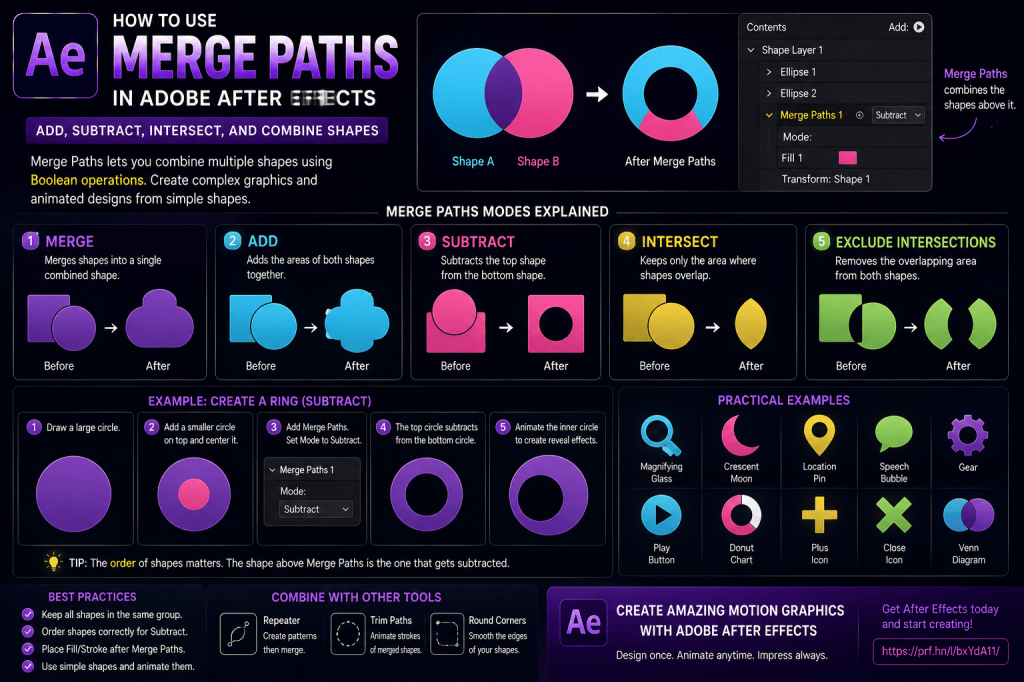 Continue reading →: How to Use Merge Paths in Adobe After Effects: Add, Subtract, Intersect, and Combine Shapes
Merge Paths is one of the most useful Adobe After Effects Shape Layer tools for creating complex vector graphics from simple shapes. Instead of drawing a complicated icon manually, you can start with basic objects such as: circles; rectangles; polygons; stars; custom paths. Then use Merge Paths to combine them…
-
Continue reading →: How to Use Round Corners in Adobe After Effects Shape Layers
Round Corners is one of the simplest Shape Layer operators in Adobe After Effects, but it can have a surprisingly large impact on motion-graphics design. A sharp geometric shape can quickly become softer, more modern, and more interface-friendly simply by increasing its corner radius. You can use Round Corners to…
-
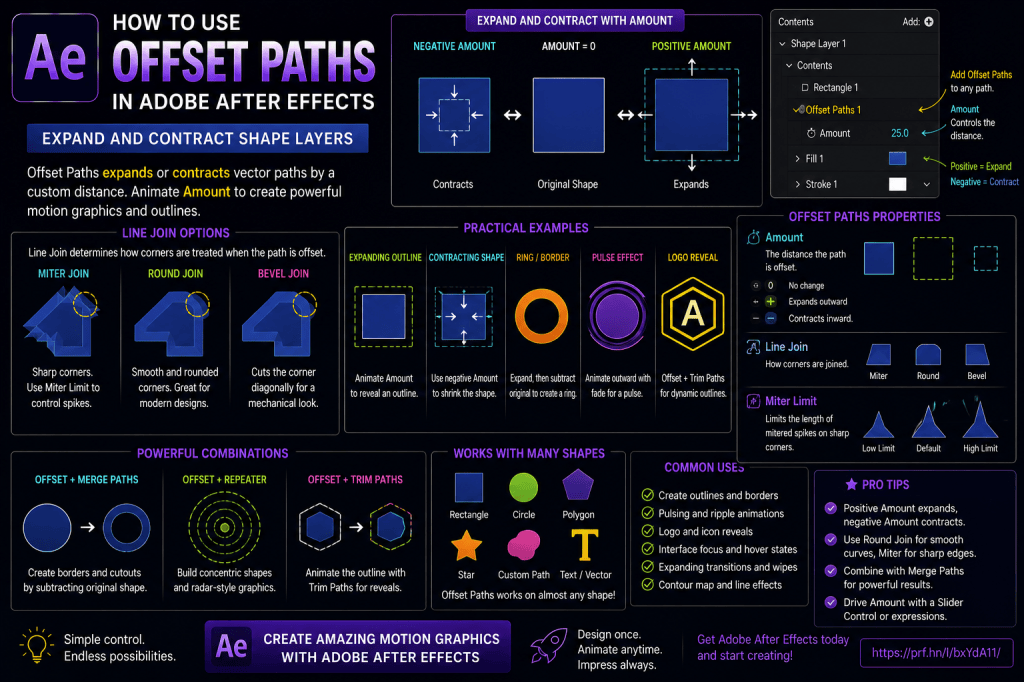 Continue reading →: How to Use Offset Paths in Adobe After Effects: Expand and Contract Shape Layers
Offset Paths is one of the most useful Shape Layer operators in Adobe After Effects when you want to grow or shrink vector geometry without manually editing every point. With Offset Paths, you can: expand a shape outward; contract a shape inward; create animated outlines; build borders; create logo reveals;…
-
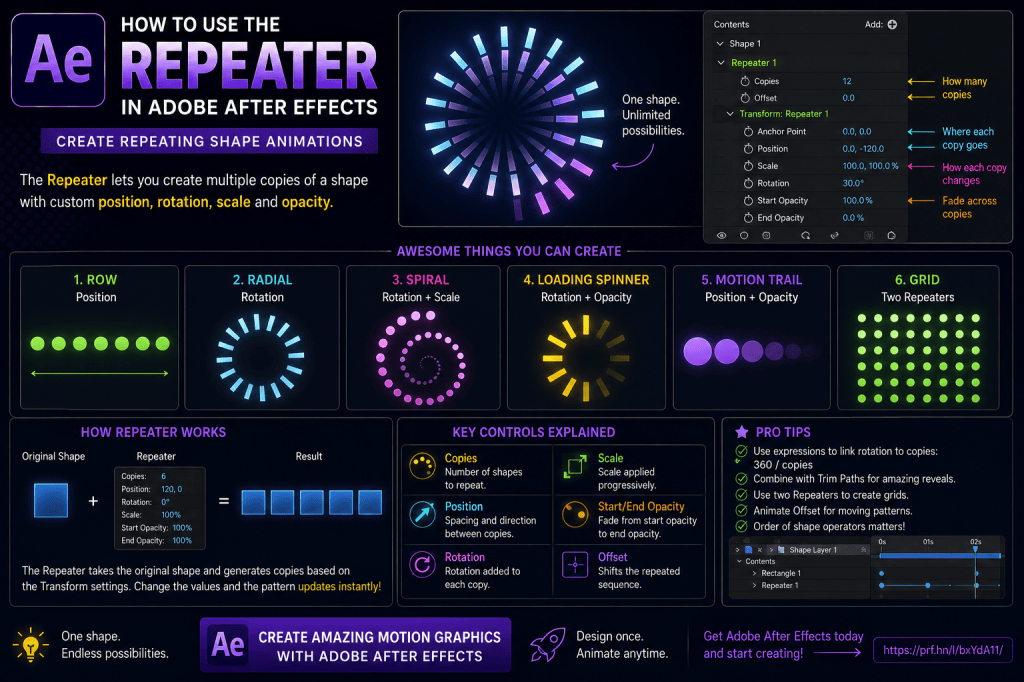 Continue reading →: How to Use the Repeater in Adobe After Effects: Create Repeating Shape Animations
The Repeater is one of the most powerful tools hidden inside Adobe After Effects Shape Layers. Instead of manually duplicating the same shape 10, 20, or 100 times, the Repeater can generate those copies automatically. Even better, each copy can progressively change its: position; rotation; scale; opacity. That makes the…
-
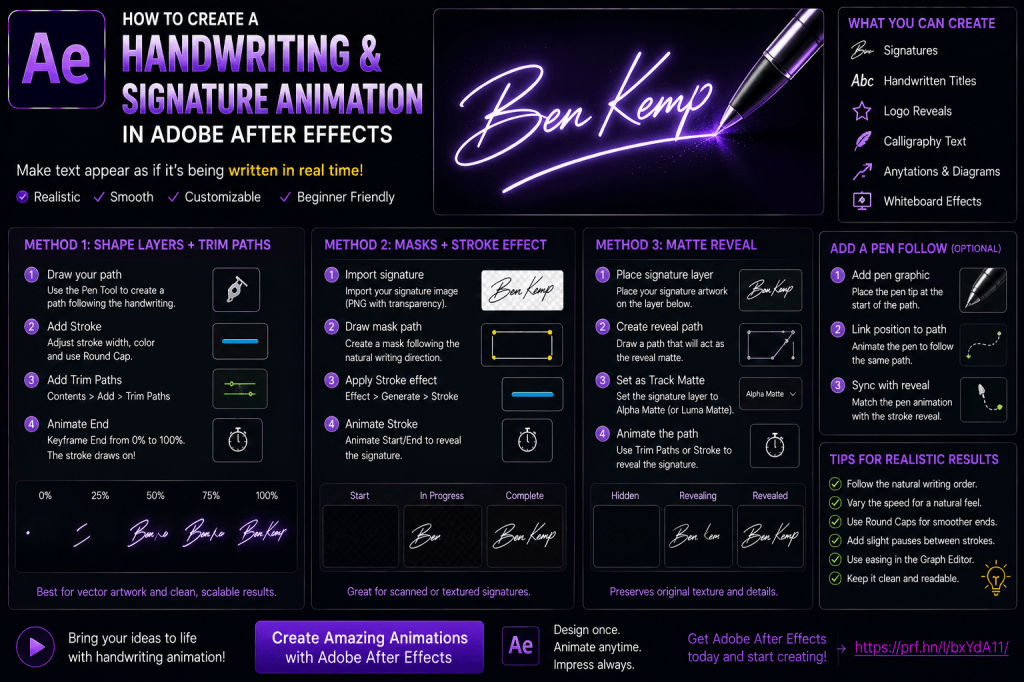 Continue reading →: How to Create a Handwriting and Signature Animation in Adobe After Effects
A handwriting animation makes text appear as though it is being written onto the screen in real time. It is a classic Adobe After Effects technique that works particularly well for: signatures; handwritten titles; logo reveals; wedding videos; documentary titles; social-media graphics; educational videos; personal branding; animated illustrations; calligraphy. The…
-
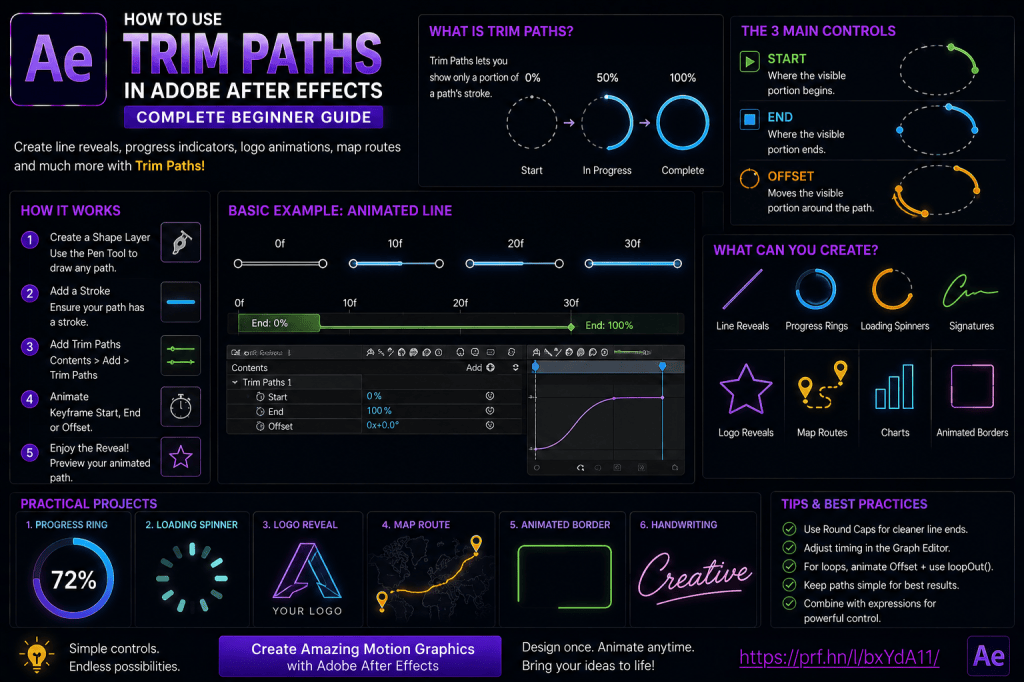 Continue reading →: How to Use Trim Paths in Adobe After Effects: Complete Beginner Guide
Trim Paths is one of the most useful animation tools inside Adobe After Effects Shape Layers. It allows you to animate a path as though it is being drawn onto the screen. A simple line can draw itself from one end to another. A circle can become an animated progress…
-
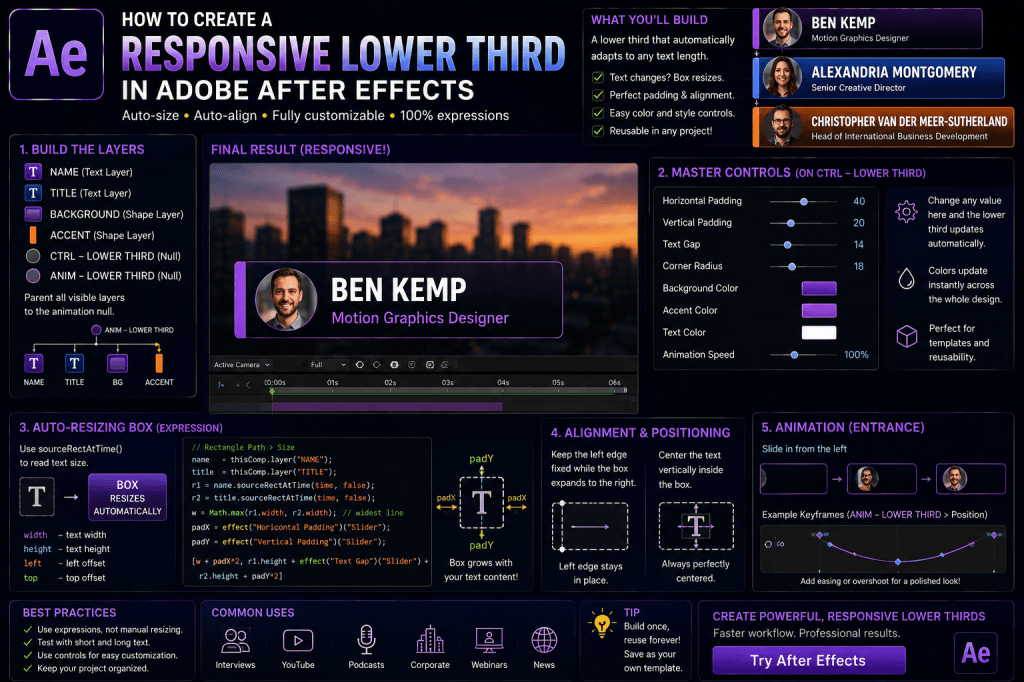 Continue reading →: How to Create a Responsive Lower Third in Adobe After Effects
Lower thirds are among the most frequently used motion graphics in Adobe After Effects. You’ll see them in: YouTube videos; interviews; documentaries; corporate videos; webinars; tutorials; podcasts; news content; product demonstrations. A basic lower third is easy to create. Add a name. Add a job title. Place a rectangle behind…
Hello,
I’m Ben

Welcome to After Effects Cloud, a place where I share my passion for Adobe After Effects, motion graphics, animation, and visual effects. I created this website to make learning After Effects easier, whether you’re opening the application for the first time or looking for new techniques to improve your creative work. Here you’ll find practical tutorials, feature guides, workflow tips, and updates covering the latest developments in After Effects. I’m constantly exploring new tools, including AI-powered features and the growing 3D capabilities inside After Effects, and I enjoy sharing what I discover along the way. I hope the articles inspire you to experiment, learn something new, and create amazing things with Adobe After Effects.
Let’s connect
Join the fun!
Stay updated with our latest tutorials and ideas by joining our newsletter.