Animated numbers appear everywhere in motion graphics.
You see them in:
- financial videos;
- dashboards;
- sports graphics;
- YouTube statistics;
- social-media posts;
- product presentations;
- infographics;
- business reports;
- advertising;
- explainer videos.
A number might animate from:
0 → 100
or:
€0 → €5,000
or:
0% → 87%
or:
1,000 → 1,000,000
You could manually create text keyframes for every value.
But that would be extremely inefficient.
After Effects expressions provide a much better solution.
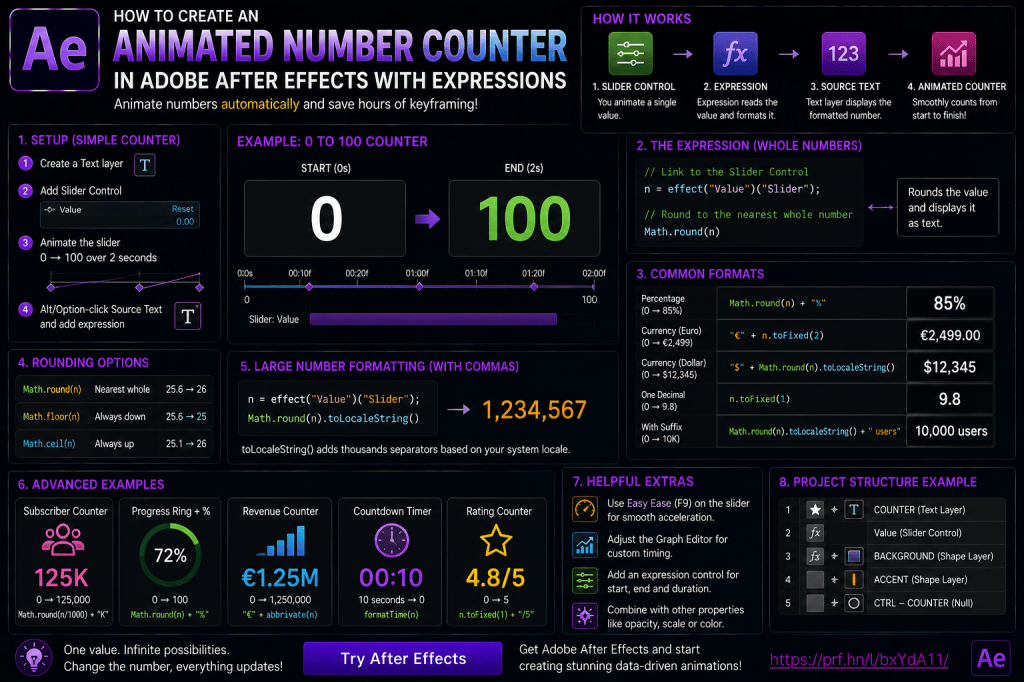
Instead of typing dozens or hundreds of numbers, you animate one control value and let an expression automatically convert that value into formatted text.
In this guide, you’ll learn how to create an animated number counter in Adobe After Effects, control it with a Slider, round values, add percentages and currency symbols, format decimals, add thousands separators, create prefixes and suffixes, and build reusable counter systems.
Affiliate disclosure: This article contains affiliate links. If you purchase Adobe After Effects through one of these links, we may earn a commission at no additional cost to you.
What Is an Animated Number Counter?
An animated number counter is a text layer whose displayed value changes automatically over time.
For example:
0
10
25
50
75
100
Instead of manually changing the Source Text every few frames, an expression reads another value and displays it as text.
The most common setup is:
Slider Control
↓
Expression
↓
Source Text
Animate the Slider.
The text updates automatically.
Why Use Expressions for Number Counters?
Expressions provide several important advantages.
You can:
- change the final value quickly;
- modify animation timing;
- format numbers automatically;
- reuse the counter;
- add percentages;
- add currency;
- show decimals;
- add commas;
- create large-number abbreviations.
This makes number counters ideal for reusable motion-graphics projects.
What We’re Going to Build
We’ll start with a simple:
0 → 100
counter.
Then extend it into:
0% → 85%
€0 → €2,499
0.0 → 9.8
1,000 → 1,000,000
and more advanced formatted counters.
Step 1: Create a Composition
Create a new After Effects composition.
For example:
1920 × 1080
Add a background if needed.
Step 2: Create a Text Layer
Select the Type Tool.
Create a Text Layer.
Type:
0
Style it using your preferred:
- font;
- weight;
- size;
- color.
Rename the layer:
COUNTER
Step 3: Add a Slider Control
Select the COUNTER layer.
Choose:
Effect → Expression Controls → Slider Control
Rename it:
Value
The Slider will drive the number displayed by the Text Layer.
Step 4: Animate the Slider
At the beginning of the Timeline:
Set:
Value = 0
Create a keyframe.
Move forward two seconds.
Set:
Value = 100
You now have a Slider animation from 0 to 100.
But the visible text still says:
0
We need to connect Source Text to the Slider.
If you’d like to practice expression-driven motion graphics yourself, you can explore Adobe’s current After Effects options here:
Explore Adobe After Effects and current plans
Step 5: Open Source Text
Expand the COUNTER layer.
Find:
Text → Source Text
Alt-click the stopwatch on Windows or Option-click it on macOS.
This creates an expression.
Step 6: Link Source Text to the Slider
Use the Expression Pick Whip to reference:
Value → Slider
Now Source Text receives the numerical Slider value.
Preview the composition.
The number changes.
However, you may notice something like:
25.4873
instead of:
25
We need to round the value.
Math.round()
Use:
Math.round()
to round to the nearest whole number.
Conceptually:
Math.round(value)
Now:
25.2 becomes:
25.7 becomes:
This is perfect for most counters.
Math.floor()
Math.floor()
always rounds downward.
For example:
25.9 becomes:
This can be useful when you don’t want the counter to display a number before it has technically reached it.
Math.ceil()
Math.ceil()
rounds upward.
For example:
25.1 becomes:
This is less common for standard number counters but useful to understand.
Which Rounding Method Should You Use?
For most visual counters:
Math.round()
is the best starting point.
Use:
Math.floor()
when the number should not jump ahead.
Use:
Math.ceil()
for specific upward-rounding requirements.
Simple Whole-Number Counter
A basic Source Text expression concept is:
n = effect("Value")("Slider");
Math.round(n);
Now your text displays clean whole numbers.
Change the Final Number
Because the animation comes from the Slider, changing the counter is easy.
Instead of:
0 → 100
make it:
0 → 500
or:
0 → 10,000
The expression does not need to change.
Change the Duration
Move the final Slider keyframe.
For example:
1 second:
fast counter.
5 seconds:
slow counter.
The Source Text automatically follows the timing.
Add Easy Ease
Select the Slider keyframes.
Press:
F9
to apply Easy Ease.
Now the number count accelerates and decelerates smoothly instead of changing at a constant rate.
Use the Graph Editor
For better control, open the Graph Editor.
Adjust the Slider animation curve.
This lets you create:
- fast starts;
- slow endings;
- dramatic acceleration;
- smooth ease-out counters.
Because Source Text simply follows the Slider, all timing control lives in one place.
Create a Percentage Counter
Suppose you want:
0% → 85%
Start with the same Slider.
Set the final value to:
Then append:
"%"
to the formatted number.
Conceptually:
Math.round(n) + "%"
Now your text shows:
0%
42%
85%
Why Concatenation Matters
In JavaScript expressions, you can combine numbers and text strings.
For example:
50 + "%"
produces:
50%
This is called string concatenation.
It becomes extremely useful for formatting counters.
Prefix and Suffix
A prefix appears before the value.
Examples:
€
$
£
#
A suffix appears after it.
Examples:
%
K
M
** subscribers**
The basic idea is:
prefix + value + suffix
Create a Dollar Counter
Conceptually:
"$" + Math.round(n)
Now the counter displays:
$0
$500
$2500
Create a Euro Counter
Use:
"€" + Math.round(n)
For example:
€0
to:
€2500
Create a Price Counter
Suppose the final price is:
€2,499
We’ll add the thousands separator later.
For now, simply animate:
0 → 2499.
Add a Text Suffix
You might want:
1,250 users
Use:
formattedNumber + " users"
Or:
82% complete
Use:
Math.round(n) + "% complete"
Add Decimals
What if the counter needs:
0.0 → 9.8
Math.round() won’t work because it removes decimal precision.
Use:
toFixed()
toFixed()
For one decimal place:
n.toFixed(1)
Examples:
3 becomes:
3.0
8.764 becomes:
8.8
For two decimals:
n.toFixed(2)
produces values such as:
8.76
Currency with Decimals
A price might need:
€19.99
Conceptually:
"€" + n.toFixed(2)
Now the display always includes two decimal places.
Percentage with One Decimal
Use:
n.toFixed(1) + "%"
Example:
87.4%
This works well for:
- analytics;
- business data;
- technical reports.
Thousands Separators
Large numbers are easier to read with separators.
Compare:
1000000
with:
1,000,000
Formatting numbers improves readability significantly.
Number Formatting with toLocaleString()
JavaScript provides:
toLocaleString()
which can format numbers with grouping separators.
Conceptually:
Math.round(n).toLocaleString()
Depending on the expression environment and locale behavior, this can produce:
1,000
10,000
1,000,000
Always test the output in your After Effects version and project context.
Why Locale Matters
Different regions format numbers differently.
For example:
English-style formatting:
1,000.50
Many European formats may use:
1.000,50
If your project has specific localization requirements, don’t assume one format works everywhere.
Test the intended output.
Manual Comma Formatting
For highly controlled template workflows, you can also build or use custom formatting logic.
This is useful when you need a specific style regardless of system locale.
Counter Example: 0 to 1,000,000
Animate the Slider:
0 → 1000000
Then format the rounded value with grouping separators.
Now the counter becomes suitable for:
- subscriber milestones;
- revenue;
- views;
- audience statistics.
Add a Prefix Slider? Better: Dropdown or Text Control
If you want users to change between:
- $
- €
- £
you could expose a different type of user control rather than hard-coding the symbol.
For template work, you might use:
- Dropdown Menu Control;
- separate Text Layer;
- other template properties.
Add a Dropdown for Currency
For example:
Currency
- Dollar
- Euro
- Pound
The expression can select the corresponding symbol.
This makes the counter more reusable.
Counter with No Symbol
You may also want:
None
as an option.
Now the same rig supports:
- prices;
- plain numbers;
- statistics.
Create a Counter with Prefix Text
Example:
Over 10,000
Use:
"Over " + formattedNumber
This is useful for marketing graphics.
Counter with Suffix Text
Example:
10,000+
Use:
formattedNumber + "+"
Or:
10,000 customers
Use:
formattedNumber + " customers"
Create a Subscriber Counter
You might animate:
0 → 100000
Display:
100,000 Subscribers
This works well for:
- channel milestones;
- social media;
- promotional videos.
Create a Revenue Counter
Animate:
€0 → €1,250,000
Use:
- Euro prefix;
- grouping separators;
- zero decimals.
This creates a professional business-style metric.
Create a Percentage KPI
Animate:
0% → 97.4%
Use one decimal.
Add a label:
Customer Satisfaction
This is excellent for:
- dashboards;
- presentations;
- corporate video.
Create a Rating Counter
Animate:
0.0 → 4.8
Suffix:
/5
Result:
4.8/5
Create a Temperature Counter
Animate:
0 → 24
Suffix:
°C
Now the same counter system works for technical and weather graphics.
Create an Age or Year Counter
Animate:
0 → 40
Suffix:
** years**
Or create a year sequence such as:
2000 → 2026
This can be useful for timelines.
Create a Countdown
Counters don’t need to go upward.
Animate the Slider:
10 → 0
Now you have a countdown.
Add:
seconds
or no suffix.
Countdown with Math.ceil()
For countdowns, Math.ceil() may sometimes provide more natural behavior because you may want the displayed number to remain:
10
until the value crosses below 9.
The correct rounding method depends on the timing style.
Timer-Style Countdown
For a more advanced countdown, you can convert seconds into:
MM:SS
For example:
01:30
01:29
01:28
This requires additional formatting logic.
Convert Seconds into Minutes and Seconds
Conceptually:
Minutes:
Math.floor(totalSeconds / 60)
Seconds:
totalSeconds % 60
Then format each as two digits.
This enables:
- timers;
- sports clocks;
- countdowns;
- event graphics.
Leading Zeros
Sometimes you need:
01
instead of:
1
For timers, leading zeros improve visual consistency.
You can add formatting logic that ensures single-digit values receive a preceding zero.
Counter with Two Digits
Examples:
01
02
09
10
This is useful for:
- timers;
- countdowns;
- ranking graphics.
Create an odometer-style Counter
A basic number counter changes the Source Text.
But you can also create more elaborate designs where individual digits roll vertically like an odometer.
This requires a different animation setup but can still use expression-driven numerical logic.
Simple Counter vs Odometer Counter
Simple counter
Fast to build.
Text changes directly.
Odometer
More visually elaborate.
Individual digits roll.
Use the simple counter first unless the design specifically needs mechanical digit movement.
Animate Color Based on Value
A counter can change color as it reaches certain values.
For example:
0–50:
red.
51–80:
yellow.
81–100:
green.
This requires conditional logic or value mapping.
Progress Counter
Combine:
Percentage Counter
with:
Progress Bar
Both can be driven by the same Slider.
This is an excellent example of property linking.
One Slider Drives Counter and Bar
Create:
Progress
Slider:
0–100.
Use it for:
Source Text → 0–100%
and:
Progress Bar Scale X → 0–100%
Now both elements stay synchronized automatically.
Add a Circular Progress Ring
The same Slider can control:
Trim Paths → End
while Source Text displays the percentage.
Now:
Progress = 65
produces:
65%
and:
a ring filled to 65%.
This is a very practical dashboard animation.
Create an Animated Statistic Card
Build:
Large Counter
Label
Icon
Background
For example:
2.4M
Monthly Views
The number can animate while the rest remains stable.
Abbreviate Large Numbers
Instead of:
2,400,000
you may want:
2.4M
Likewise:
15,000
could become:
15K
This requires conditional formatting.
K, M, and B Formatting
Conceptually:
If value ≥ 1,000,000,000:
divide by 1,000,000,000 and add:
B
If value ≥ 1,000,000:
divide by 1,000,000 and add:
M
If value ≥ 1,000:
divide by 1,000 and add:
K
Otherwise:
display the full number.
Example
2400:
2.4K
2500000:
2.5M
1200000000:
1.2B
This is useful for modern analytics graphics.
Keep Precision Consistent
For abbreviated counters, decide whether you want:
2M
or:
2.0M
or:
2.45M
The right choice depends on the design.
Avoid unnecessary precision.
Add Expression Controls
A reusable counter can expose:
Value
Decimal Places
Prefix
Suffix
Animation Duration
Not all of these need to be Expression Controls directly, but the principle is to expose the parameters users actually need.
Create a Master Counter Control Layer
For more complex compositions, create a Null:
CTRL — COUNTER
Add:
Value
Decimal Places
Minimum Value
Maximum Value
Color
Other visible layers can reference those settings.
Animate the Controller, Not the Text
This is a useful organizational principle.
Keep the Text Layer responsible for formatting.
Keep the controller responsible for numerical animation.
That separation makes the project easier to manage.
Drive Multiple Counters
Suppose you’re creating a dashboard with:
- Revenue;
- Customers;
- Conversion Rate.
Each can have its own Slider.
Or they can share a global animation progress control.
Global Progress Technique
Create:
Animation Progress
Slider:
0–100.
Then each counter maps that progress to a different final value.
For example:
Progress 0–100
maps to:
Revenue 0–1,000,000
Customers 0–12,500
Conversion 0–8.4%
Now one animation drives the complete dashboard.
Why This Is Powerful
You can adjust the entire infographic timing using one set of keyframes.
All counters remain synchronized.
Use linear() for Global Progress
linear() is ideal for this.
Conceptually:
linear(progress,0,100,0,targetValue)
Now each metric receives its own target while sharing the same master progress.
Use ease() for Better Motion
Replace linear() with ease() when you want counters to ease naturally.
This can make dashboard sequences feel more polished.
Stagger Multiple Counters
Not every number needs to animate simultaneously.
You can offset:
- layers;
- animation controls;
- time references.
For example:
Revenue begins first.
Customers follow five frames later.
Conversion follows another five frames later.
This creates visual rhythm.
Number Counter Animation Speed
A counter going from:
0 to 100
over one second may look fine.
A counter going from:
0 to 10,000,000
doesn’t need ten million visible steps.
After Effects calculates the changing value continuously.
The viewer simply perceives the number increasing rapidly.
Frame Rate Affects Visible Steps
At 30 fps, a two-second animation contains roughly:
60 displayed frames.
Even if the number moves from:
0 to 1,000,000,
the viewer only sees around 60 intermediate displayed states.
That’s perfectly normal.
Motion Blur Does Not Apply to Text Changes the Same Way
Changing Source Text values is not the same as moving a layer through space.
Traditional Transform motion blur won’t create a smooth numerical smear between digit values.
If you want odometer-like movement, animate actual digit layers or use a different visual technique.
Ease the Slider, Not the Source Text
The Source Text expression simply reads the value.
Control timing through:
Slider keyframes
and:
Graph Editor.
This keeps the expression simple.
Use Hold Keyframes for Step Counters
Sometimes you want discrete steps:
1
2
3
4
rather than a continuously changing number.
You can use:
- stepped values;
- Hold Keyframes;
- Posterize Time;
- mathematical rounding.
This is useful for stylized digital counters.
Posterize Time
posterizeTime()
can limit how often an expression updates.
For example, a counter could update only:
10 times per second.
This creates a more mechanical stepped effect.
Counter with a Mechanical Feel
Instead of changing every frame, use a lower update rate.
This can work well for:
- retro displays;
- scoreboards;
- terminal-style graphics.
Counter with Glitch Effects
You can combine a number counter with:
- Wiggle;
- Glow;
- RGB separation;
- noise;
- flicker.
This creates stylized technology or cyber graphics.
Keep the core numerical expression separate from the visual effects.
Counter with Responsive Background
Remember our auto-resizing text boxes?
A number counter can use the same technique.
The background automatically grows as:
99
becomes:
100,000
This is particularly useful when large values change the text width substantially.
Counter with Responsive Label
Build:
Number
and:
Label
inside a responsive card.
For example:
1.2M
Downloads
The card can adapt automatically.
Counter in a Lower Third
You can combine the techniques from previous articles.
For example:
Quarterly Growth
+28.7%
inside a responsive lower third.
Now:
- text responds;
- box resizes;
- number animates;
- colors are controlled centrally.
Counter and Audio
You can even connect numerical values to audio data.
For example, display the current amplitude.
This is more technical than most practical designs, but it demonstrates that expressions allow one data source to drive another.
Common Mistake: Showing Too Many Decimals
Don’t display:
87.493827%
unless that level of precision is genuinely meaningful.
Use appropriate rounding.
Common Mistake: No Number Formatting
Large numbers without separators are difficult to read.
Compare:
15000000
with:
15,000,000
Common Mistake: Wrong Currency Format
Formatting expectations vary by region.
Be deliberate about:
- symbol;
- decimal separator;
- grouping separator;
- symbol position.
Common Mistake: Counter Animates Too Fast
If the number becomes unreadable, slow it down or shorten the displayed precision.
Common Mistake: Counter Animates Too Slowly
Watching a number slowly count from 0 to 1,000,000 for 20 seconds is rarely engaging.
Match duration to context.
Common Mistake: No Easing
Linear counters can feel mechanical.
Use easing when appropriate.
Common Mistake: Formatting Logic Mixed Everywhere
Keep:
numerical control
and:
text formatting
organized separately.
Common Mistake: Using Text Keyframes Manually
If the number is mathematically continuous, a Slider and expression are usually much easier.
Common Mistake: No Stress Testing
Try:
0
9
99
999
10,000
1,000,000
Make sure the layout still works.
Counter Expression Workflow
A clean process is:
1. Create the Text Layer
2. Add Value Slider
3. Animate the Slider
4. Link Source Text
5. Round or format
6. Add prefix/suffix
7. Add thousands separators
8. Test extreme values
9. Add responsive layout
10. Save as reusable component
Five Number Counter Exercises
Exercise 1 — Basic Integer Counter
Animate:
0 → 100
with Math.round().
Exercise 2 — Percentage
Animate:
0 → 85%
Exercise 3 — Price
Animate:
€0 → €2499
with two decimal places if required.
Exercise 4 — Large Statistic
Animate:
0 → 1,000,000
with grouping separators.
Exercise 5 — KPI Card
Combine:
Counter + label + progress bar.
These exercises cover most practical counter workflows.
Practical Project: Percentage Ring
Create:
Progress Slider
Animate:
0 → 85.
Use it to control:
Text: 85%
and:
Trim Paths End: 85%
Now you have a synchronized circular progress indicator.
Practical Project: Revenue Metric
Create:
Revenue
as a large number.
Animate:
0 → 1250000.
Format it:
€1,250,000
Add:
Annual Revenue
as the label.
Use a responsive card background.
Practical Project: Social Milestone
Animate:
0 → 100000.
Format:
100K
Add:
Subscribers
Animate celebratory Shape Layers when the final value is reached.
Practical Project: Dashboard
Create three counters:
Revenue
Customers
Conversion Rate
Use one master progress Slider to animate all three.
Each counter maps that progress into a different value.
This is a very efficient infographic workflow.
Frequently Asked Questions
How do I create a number counter in After Effects?
Create a Slider Control, animate its value, and use an expression on Source Text to display the Slider value.
How do I remove decimals?
Use Math.round(), Math.floor(), or Math.ceil() depending on the desired behavior.
How do I show decimal places?
Use toFixed().
How do I add a percentage sign?
Append "%" to the formatted value.
How do I add a currency symbol?
Add a prefix such as "$" or "€".
Can I add commas to large numbers?
Yes. Formatting functions or custom logic can add thousands separators.
Can I animate from a high number to a low number?
Yes. Simply animate the Slider downward.
Can I create a countdown?
Yes.
Can I create a timer?
Yes, though minutes-and-seconds formatting requires additional expression logic.
Can I abbreviate numbers as K or M?
Yes. Conditional expressions can format thousands, millions, and billions.
Can one Slider control a progress bar and number simultaneously?
Yes.
Can I use easing?
Yes. Apply easing to the Slider keyframes.
Do I need a plug-in?
No. Number counters can be created entirely with native After Effects expressions and Expression Controls.
Practice Number Counters in After Effects
Create a Text Layer.
Add a Slider.
Animate:
0 → 100.
Link the Source Text.
Round the number.
Then add:
%
Once that works, duplicate the project.
Turn it into:
€0 → €10,000
Then:
0 → 1.5M
Then:
10 → 0
for a countdown.
In a short practice session, you’ll understand one of the most useful data-driven animation techniques in After Effects.
If you’d like to experiment with number counters and expression-driven graphics yourself, you can explore Adobe’s current After Effects options here:
Get Adobe After Effects and start creating animated data graphics
What Should You Learn Next?
Animated numbers naturally lead into a broader motion-design topic:
data visualization.
Instead of animating just one value, you can use After Effects to create:
- bar charts;
- line charts;
- percentage rings;
- KPI cards;
- dashboards;
- animated infographics.
Expressions can keep values, labels, and shapes synchronized.
The next article will therefore be:
How to Create Animated Charts and Infographics in Adobe After Effects.
We’ll build practical data visualizations and show how expressions and master controls can make them easier to update.
Final Thoughts
Animated number counters are a perfect example of how a simple expression can eliminate a huge amount of repetitive work.
Instead of manually changing:
1
2
3
4
and so on, you animate one numerical control.
The expression handles the display.
From there, formatting turns a basic counter into a professional data graphic.
You can create:
85%
€1,250,000
4.8/5
2.5M
10 seconds
with the same fundamental system.
The workflow is:
Animate a value.
Reference it in Source Text.
Round it.
Format it.
Add prefixes and suffixes.
Connect it to other graphics.
And when the number changes, the animation remains reusable.
That’s what makes expression-driven counters so useful for modern After Effects projects.
Explore Adobe After Effects and start building animated counters and data graphics