Isolating an object from video has traditionally been one of the most time-consuming jobs in visual effects.
A person walks through a scene. A car passes in front of a building. A product rotates on a table. If you want to separate that object from its background, you need an accurate matte that follows it over time.
For years, After Effects artists have relied heavily on techniques such as masks and Roto Brush.
Adobe is now introducing a more AI-assisted approach with Object Matte.
Object Matte is designed to identify and isolate objects in footage with significantly less manual rotoscoping. Instead of drawing detailed masks or repeatedly painting foreground and background regions, you can identify an object and allow After Effects to generate a time-aware matte around it.
This has potentially important implications for:
- background replacement;
- text-behind-subject effects;
- selective color correction;
- screen replacement;
- compositing;
- visual effects;
- object removal;
- motion graphics;
- social-media video;
- advertising.
In this guide, we’ll explore what Object Matte is, how it differs from Roto Brush, how AI-powered object isolation works conceptually, where it can save time, where traditional rotoscoping may still be necessary, and how it fits into a modern Adobe After Effects workflow.
Affiliate disclosure: This article contains affiliate links. If you purchase Adobe After Effects through one of these links, we may earn a commission at no additional cost to you.
What Is an Object Matte?
Before looking at the AI technology, it helps to understand the word matte.
A matte describes which areas of an image should be visible and which should be transparent.
Conceptually:
White = visible
Black = transparent
Gray = partially transparent
If you create a matte for a person, After Effects can use that information to separate the person from the background.
The difficult part has traditionally been generating an accurate matte for every frame of video.
Object Matte is designed to make that process substantially more automated.
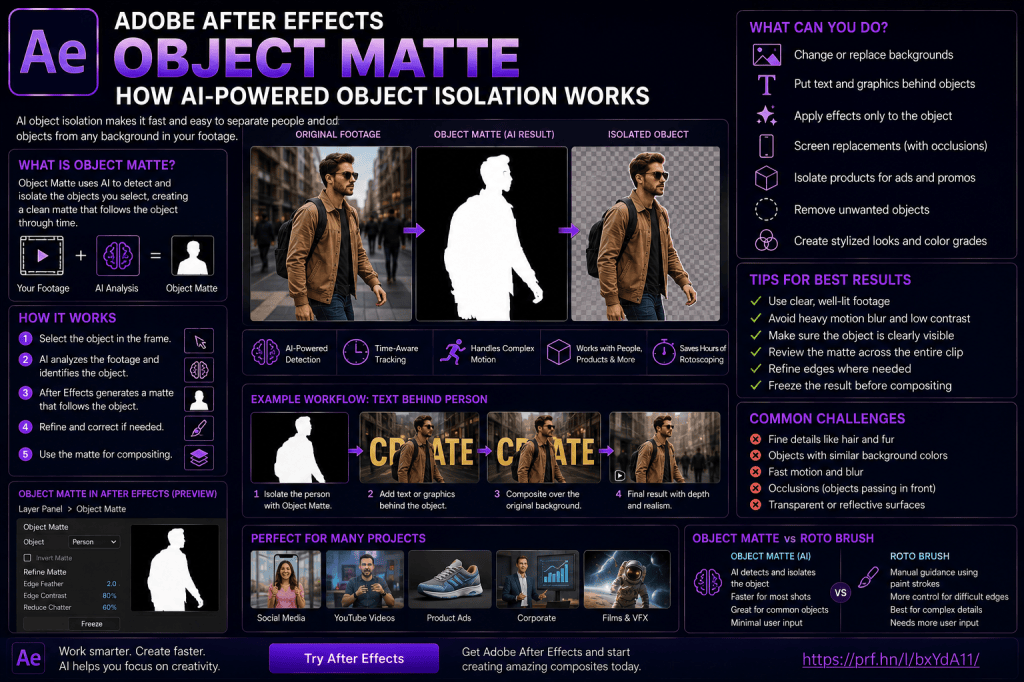
What Is Object Matte in After Effects?
Object Matte is an AI-powered object-isolation workflow being developed for Adobe After Effects.
Instead of manually tracing an object, you identify the subject you want to isolate.
After Effects then uses AI-assisted analysis to recognize the object and generate a matte that follows it through the footage.
The basic idea is:
Select object
↓
After Effects identifies it
↓
AI analyzes the object across frames
↓
A matte is generated
↓
Use the matte for compositing
This can dramatically reduce the repetitive work associated with traditional rotoscoping.
Why Object Isolation Matters
Object isolation is fundamental to compositing.
Once you’ve separated a person or object from its background, you can do many things that weren’t possible with the original flattened footage.
For example, you can:
- place graphics behind the subject;
- replace the background;
- apply effects only to the subject;
- modify the background independently;
- create depth;
- remove distracting elements;
- integrate 3D graphics;
- create stylized color treatments.
The matte becomes a gateway to many other effects.
Traditional Rotoscoping
Historically, rotoscoping could involve manually drawing masks around an object.
Imagine isolating a person in a 10-second clip recorded at 30 frames per second.
That’s approximately:
300 frames.
You wouldn’t necessarily redraw the entire mask 300 times, because mask interpolation and tracking can help.
But complex movement can still require substantial manual correction.
Hair, fingers, motion blur, and overlapping objects make the process even harder.
Roto Brush Changed the Workflow
Roto Brush already made this process considerably easier.
Instead of manually tracing every boundary, you provide examples of foreground and background regions.
After Effects analyzes those regions and propagates the segmentation through nearby frames.
The workflow becomes:
Paint foreground
↓
Correct background
↓
Propagate
↓
Refine
↓
Freeze
This can save substantial time.
But it still requires user supervision.
Object Matte Pushes Automation Further
Object Matte changes the interaction again.
Instead of beginning primarily with brush strokes that teach After Effects which pixels belong to the foreground, the workflow focuses more directly on identifying the object itself.
Conceptually:
“That person is the object I want.”
The AI then attempts to understand and isolate that object over time.
This is a major shift.
The software is moving from pixel-level assistance toward more semantic understanding of the footage.
Pixel Selection vs Object Understanding
This distinction is worth understanding.
Traditional masks essentially say:
“Keep the pixels inside this path.”
Roto Brush says something closer to:
“These pixels represent foreground; use them to estimate the subject.”
AI-assisted Object Matte moves toward:
“This is the object I want isolated.”
Each generation gives the software more responsibility for interpreting the image.
Is Object Matte Replacing Roto Brush?
Not necessarily.
Different shots require different tools.
Object Matte may be dramatically faster when AI can confidently identify the subject.
Roto Brush may remain useful when:
- the subject is difficult to recognize;
- precise manual guidance is required;
- several similar objects overlap;
- edge refinement needs more direct control;
- the AI-generated result needs additional cleanup.
Masks will also remain useful.
Professional compositing is rarely about one tool replacing every other tool.
It’s about choosing the fastest reliable technique for the shot.
Before You Begin
If you’re new to object isolation, I recommend understanding Roto Brush as well.
Our previous tutorial was:
How to Use Roto Brush in Adobe After Effects: Complete Beginner Guide
That guide explains:
- rotoscoping;
- foreground/background separation;
- propagation;
- Refine Edge;
- Freeze;
- matte cleanup.
Those concepts remain valuable because AI-generated mattes still need to be evaluated.
If you want to explore Adobe After Effects and its evolving AI-assisted video tools yourself, you can check the current options here:
Explore Adobe After Effects and current plans
How Object Matte Works Conceptually
AI-powered object isolation combines several difficult computer-vision problems.
The system needs to determine:
- Which object you selected.
- Where its boundaries are.
- How the object changes shape.
- Where it moves.
- What happens when it becomes partially hidden.
- Whether it remains the same object in later frames.
This is significantly more complicated than selecting an object in a single photograph.
Video adds time.
Temporal Consistency
Suppose you select a person.
On frame 1, the person is clearly visible.
On frame 20, they turn sideways.
On frame 40, their hand moves in front of their body.
On frame 60, another person briefly crosses in front.
The system must try to maintain the identity of the selected subject across all those changes.
This is known broadly as maintaining consistency over time.
For visual effects, this is critical.
Why Single-Frame Segmentation Isn’t Enough
Imagine an AI tool creates a perfect selection independently on every frame.
That sounds ideal.
But if the boundary differs slightly from frame to frame, the edge may flicker.
In video, consistency is just as important as single-frame accuracy.
A slightly imperfect but temporally stable matte may sometimes look better than a theoretically perfect selection that changes unpredictably every frame.
Selecting an Object
The Object Matte workflow is designed around identifying the subject you want After Effects to isolate.
Depending on the current implementation, you may work with an object-selection interaction rather than manually tracing the entire subject.
For example, imagine footage containing:
- person;
- bicycle;
- car;
- building.
You identify the bicycle.
After Effects analyzes the footage and attempts to generate a matte for that bicycle through the relevant frames.
People
People are an obvious use case.
You could isolate a person and then:
- place text behind them;
- change the background;
- apply selective effects;
- create depth;
- add tracked graphics.
This is particularly valuable for social-media and advertising workflows.
Products
Imagine a product advertisement.
A shoe rotates on a table.
Object Matte could potentially help isolate the shoe.
You can then:
- change the background;
- adjust product color;
- add glow;
- insert typography behind it;
- create multiple visual treatments.
This can significantly accelerate creative experimentation.
Vehicles
A moving car can be another useful subject.
Once isolated, you could:
- change its color;
- place graphics behind it;
- darken the environment;
- apply selective effects;
- create advertising compositions.
Complex reflections and motion blur may still make certain shots challenging, but AI-assisted isolation can provide a much faster starting point.
Animals
Animals can be difficult to rotoscope because of:
- fur;
- unpredictable movement;
- changing silhouettes.
AI object recognition may help identify the overall subject.
However, fine fur edges can still require careful evaluation and refinement.
This is a good example of the distinction between:
Object recognition
and
perfect matte generation.
Knowing which pixels belong to a dog is one problem.
Creating beautiful semi-transparent fur edges is another.
Object Matte vs Roto Brush
Let’s compare the workflows.
Roto Brush
You provide foreground and background segmentation guidance.
After Effects propagates that information.
You correct the result.
Object Matte
You identify the object.
AI attempts to understand and track that object over time.
The interaction can therefore be considerably simpler for suitable footage.
Object Matte vs Masks
Masks remain useful when:
- the object is simple;
- the boundary is geometric;
- you only need a rough isolation;
- the shot is short;
- complete precision isn’t necessary.
For example, isolating a rectangular sign may be easier with a mask or planar tracking than with an AI object-isolation workflow.
Use the tool that fits the geometry of the problem.
Object Matte vs Mocha AE
Mocha AE is designed around planar tracking.
It’s excellent for:
- screens;
- signs;
- walls;
- flat surfaces.
Object Matte is designed around identifying and isolating objects.
For example:
Phone screen → Mocha AE
Person holding phone → Object Matte or Roto Brush
These tools can work together.
Object Matte vs 3D Camera Tracker
The 3D Camera Tracker reconstructs camera movement and aspects of scene geometry.
Object Matte isolates subjects.
Imagine footage of someone walking through a city.
You could:
- use 3D Camera Tracker to place text on a building;
- use Object Matte to isolate the person;
- place the isolated person above the text.
Layer structure:
Isolated person
3D tracked text
Original footage
The text now appears naturally behind the person.
Example: Put Text Behind a Person
This is one of the easiest ways to understand why Object Matte matters.
Start with footage of someone walking.
Create an object matte for the person.
Duplicate the footage if necessary.
Your composition becomes:
Isolated person
Text
Original footage
Type:
AFTER EFFECTS
Place it between the foreground subject and original background.
The person passes in front of the typography.
You instantly create a stronger sense of depth.
Animate the Typography
Take the effect further.
Animate the text’s:
- Position;
- Scale;
- Tracking;
- Opacity.
You can also use:
- blur;
- glow;
- gradients;
- shape layers.
The AI-generated matte handles the foreground occlusion while your motion design handles the visual style.
Example: Background Replacement
Once the person is isolated, hide the original background.
Place another image or video underneath.
Layer structure:
Object Matte subject
New background
Now you’re performing a background replacement.
But the matte is only the first part.
You still need to make the composite believable.
Match the New Background
Consider:
- lighting;
- color temperature;
- perspective;
- depth of field;
- grain;
- contrast;
- shadows.
If the subject was filmed in bright daylight, placing them into a dark indoor environment may require significant color correction.
AI can create the isolation.
It cannot automatically solve every artistic inconsistency.
Example: Change Only the Background
You don’t need to replace it.
You could duplicate the original footage.
Use Object Matte to preserve the person.
Then modify the background.
For example:
Foreground person → normal color
Background → desaturated
This creates the classic selective-color effect.
Blur the Background
Another easy effect:
Foreground → isolated subject
Background → blurred original footage
This creates stronger subject separation.
Use the effect carefully so it doesn’t look artificial.
Add Effects Behind the Subject
Once you have a matte, you can insert graphics between foreground and background.
Try:
- particles;
- light streaks;
- animated shapes;
- typography;
- smoke;
- glowing lines;
- interface graphics.
The isolated subject automatically occludes those elements.
Add Effects Only to the Subject
The matte can also restrict an effect to the object itself.
For example:
- glow only around the person;
- color correction only on a car;
- stylization only on a product;
- blur only on a specific object.
This can create sophisticated treatments without manually animating complex masks.
Screen Replacement with Object Matte
Return to our phone-screen example.
Mocha AE tracks the phone screen.
The replacement content is inserted.
But the person’s fingers move across the display.
Object Matte may help isolate the hand or person.
Your layer stack could become:
Foreground hand/person
Tracked screen replacement
Original footage
This preserves correct occlusion.
Object Removal Workflows
Object isolation can also contribute to object removal.
Before removing something, you often need to identify where it is.
An accurate matte can help define the region that needs replacement or reconstruction.
This can work alongside tools such as Content-Aware Fill.
We’ll cover Content-Aware Fill in the next article.
The Importance of Matte Quality
AI-generated doesn’t mean automatically perfect.
Inspect the result.
Look at:
- hair;
- hands;
- fingers;
- transparent objects;
- motion blur;
- reflections;
- thin objects;
- overlapping subjects.
These areas frequently reveal segmentation problems.
Hair
Hair remains a classic compositing challenge.
The overall head may be easy to recognize.
Individual hair strands are more difficult.
Some hair is partially transparent.
Some strands overlap backgrounds with similar colors.
Always inspect difficult hair edges rather than assuming the first AI result is final.
Motion Blur
Imagine a person rapidly waving their hand.
The hand isn’t represented by a perfectly sharp shape.
Its pixels blend into the background.
A good matte needs to represent that semi-transparent motion.
Hard edges can make the composite look cut out.
Similar Foreground and Background Colors
Suppose someone wears a dark jacket against a dark wall.
The visual boundary may be ambiguous.
AI recognition can potentially help because it considers more than simple color differences.
But difficult regions may still need correction.
Occlusion
Occlusion occurs when one object passes in front of another.
For example:
You isolate Person A.
Person B walks in front of them.
The system must distinguish:
selected person
from
temporarily overlapping person.
This is a challenging temporal segmentation problem.
Always inspect these moments carefully.
Transparent Objects
Glass is difficult because it isn’t simply foreground or background.
You can see the background through it.
Similar problems occur with:
- smoke;
- veils;
- translucent fabric;
- reflections.
These require partial transparency.
AI-generated mattes may need additional refinement depending on the shot.
Fine Objects
Thin structures can also be difficult.
Examples:
- bicycle spokes;
- wires;
- hair;
- plant stems;
- fingers at a distance.
Whether they matter depends on the final output.
A matte for social-media video doesn’t always require the same precision as a cinematic VFX shot.
Evaluate at Final Resolution
This is important.
Don’t judge every matte only at extreme zoom.
Ask:
What will viewers actually see?
A tiny edge error may disappear completely at normal playback speed and final resolution.
Focus your effort on visible problems.
AI Does Not Eliminate Compositing Skills
Object Matte can automate part of the workflow.
But you still need to understand:
- transparency;
- layering;
- edge quality;
- motion blur;
- color matching;
- lighting;
- perspective;
- grain;
- depth.
AI makes selection faster.
It doesn’t replace the compositing decisions that make the result believable.
A Modern Object-Isolation Workflow
A practical workflow might look like this:
1. Identify the subject
Choose the object you want to isolate.
2. Generate the matte
Allow After Effects to analyze the footage.
3. Review the result
Watch the full shot.
4. Inspect difficult edges
Hair, fingers, blur, occlusion.
5. Correct where necessary
Use appropriate refinement tools.
6. Build the composite
Add backgrounds, graphics, effects, or replacements.
7. Match the image
Color, lighting, blur, grain.
8. Preview
Look for temporal problems.
9. Render
Inspect the final output.
Don’t Skip the Review Stage
AI can create a result very quickly.
That speed creates a temptation:
Generate matte → Render immediately
Don’t.
Watch the entire clip.
An isolation can look excellent for 95% of the footage and fail dramatically for five frames.
Those five frames may be all the viewer notices.
Object Matte for Social-Media Videos
Fast isolation is especially useful for creators producing:
- Instagram Reels;
- YouTube Shorts;
- TikTok-style vertical videos;
- promotional clips.
For example, isolate the presenter.
Place animated typography behind them.
Add large graphic elements.
You can create a polished layered effect without a green screen.
Object Matte for YouTube
You could isolate a presenter and add:
- diagrams;
- animated titles;
- screenshots;
- charts;
- B-roll;
- interface graphics;
behind or around them.
This creates a more dynamic visual presentation.
Object Matte for Advertising
Product isolation is extremely useful in advertising.
Imagine a shoe moving through a shot.
Isolate it.
Then create several campaign variations:
Version A
Bright gradient background.
Version B
Dark premium background.
Version C
Animated typography.
Version D
Particle effects.
The same source footage can support many creative treatments.
Object Matte for Corporate Video
Corporate video can also benefit.
Isolate a speaker.
Place:
- statistics;
- diagrams;
- branded shapes;
- key messages;
behind the speaker.
This creates visual depth without requiring a green-screen studio.
Object Matte for VFX
For visual-effects artists, faster object isolation can reduce time spent on repetitive matte generation.
That time can instead go toward:
- integration;
- lighting;
- effects;
- cleanup;
- color;
- storytelling.
This is where AI can provide real production value.
It accelerates mechanical tasks while leaving creative decisions to the artist.
Does Object Matte Make Green Screens Obsolete?
No.
Green-screen production still has major advantages.
A properly lit chroma-key setup can provide highly controlled foreground/background separation.
It can be especially valuable for:
- long sequences;
- studio productions;
- difficult hair;
- high-volume work;
- planned VFX.
AI isolation is particularly useful when footage wasn’t originally shot for compositing.
The technologies can coexist.
Does Object Matte Make Rotoscoping Obsolete?
Also no.
There will always be difficult shots.
AI may provide an excellent starting matte, but professional work may still require:
- cleanup;
- masks;
- Roto Brush;
- manual adjustments;
- specialized compositing.
The difference is that artists may spend less time creating the first approximation.
Why This Matters for Beginners
Rotoscoping has historically been a significant barrier for new After Effects users.
The idea of manually separating a moving person across hundreds of frames can be intimidating.
AI-assisted Object Matte can make object isolation more approachable.
A beginner can focus sooner on the creative result:
“I want the title behind the person.”
rather than spending most of the project tracing the person.
Why You Should Still Learn Roto Brush
Even if Object Matte becomes your preferred starting point, understanding Roto Brush remains worthwhile.
Why?
Because it teaches you how mattes behave.
You’ll understand:
- foreground/background separation;
- edge refinement;
- propagation;
- temporal errors;
- partial transparency.
When AI produces a bad result, you’ll know what you’re looking at and how to think about fixing it.
AI-Assisted Doesn’t Mean AI-Only
A powerful modern After Effects workflow might combine:
Object Matte
for rapid subject selection,
Roto Brush
for difficult edge refinement,
Masks
for cleanup,
Mocha AE
for planar tracking,
3D Camera Tracker
for environmental positioning,
and
Content-Aware Fill
for removing unwanted objects.
The strength comes from combining tools.
A Beginner Practice Project
Use a short video of someone walking across the frame.
Create an Object Matte for the person.
Then build:
Foreground person
Large animated text
Original footage
Type:
CREATE
Animate the text from left to right.
The person walks in front of it.
Then duplicate the project.
In version two:
Blur the background.
In version three:
Replace the background.
In version four:
Add particles behind the person.
One isolated subject can become the foundation for several different effects.
A Product Practice Project
Record a product rotating slowly on a table.
Try isolating it.
Place a gradient background behind it.
Add:
- product name;
- feature callouts;
- animated shapes;
- glow.
This is an excellent way to explore AI isolation for commercial motion design.
Common Object Matte Mistakes
Mistake 1: Assuming AI Means Perfect
Always inspect the entire result.
Mistake 2: Ignoring Hair
Fine edges deserve special attention.
Mistake 3: Ignoring Motion Blur
A hard matte can destroy realistic motion.
Mistake 4: Forgetting Occlusion
Check where other objects cross the subject.
Mistake 5: Ignoring Temporal Flicker
Watch the matte in motion, not just as still frames.
Mistake 6: Using AI When a Simple Mask Is Faster
Choose the simplest suitable technique.
Mistake 7: Ignoring Final Resolution
Don’t waste hours correcting invisible imperfections.
Mistake 8: Treating Isolation as the Finished Effect
The matte is only the beginning of the composite.
When to Use Object Matte
Consider Object Matte when:
- you need rapid object isolation;
- the subject is clearly identifiable;
- manual rotoscoping would be time-consuming;
- you’re experimenting with multiple creative versions;
- you need foreground/background separation.
When to Use Roto Brush
Consider Roto Brush when:
- you need more manual segmentation guidance;
- the automatic result needs refinement;
- you want detailed control over difficult regions.
When to Use Masks
Consider masks when:
- the subject is simple;
- the boundary is geometric;
- only a small region needs isolation;
- manual animation is straightforward.
When to Use Mocha AE
Use Mocha AE when:
- the subject is a planar surface;
- you’re tracking a screen;
- you’re replacing a sign;
- perspective tracking is required.
When to Use 3D Camera Tracker
Use 3D Camera Tracker when:
- the camera moves through an environment;
- virtual graphics need to remain positioned within that environment.
Choosing the right tool is one of the most important After Effects skills you can develop.
The Future of Rotoscoping
AI-assisted segmentation is likely to continue becoming more capable.
We can expect object-isolation workflows to become:
- faster;
- more automatic;
- more temporally stable;
- better at difficult edges;
- easier for beginners.
But the fundamental compositing principles won’t disappear.
Artists will still need to evaluate whether a matte is good enough.
They’ll still need to integrate the isolated object into a believable scene.
The repetitive work may decrease.
The creative work remains.
Is After Effects Becoming More AI-Powered?
Yes.
Adobe has increasingly incorporated machine-learning and AI-assisted capabilities across its creative applications.
In After Effects, AI-assisted tools are particularly valuable when they automate tasks that historically required substantial repetitive work.
Object isolation is an obvious example.
The goal isn’t merely to generate something automatically.
It’s to give motion designers and visual-effects artists more time for creative decisions.
Try AI-Assisted Compositing in After Effects
If you’ve previously avoided rotoscoping because it seemed too complicated, modern After Effects workflows are worth exploring.
Start with a simple subject.
Create a matte.
Put text behind the person.
Then experiment with:
- background replacement;
- selective color;
- particles;
- screen replacement;
- tracked graphics.
If you’d like to explore After Effects and its evolving AI-assisted tools, you can check Adobe’s current options here:
Get Adobe After Effects and explore its compositing tools
Frequently Asked Questions
What is Object Matte in After Effects?
Object Matte is an AI-assisted object-isolation workflow designed to create mattes for selected objects across video frames.
What is a matte?
A matte defines which parts of a layer are visible, transparent, or partially transparent.
Is Object Matte the same as Roto Brush?
No. Both help isolate subjects, but Object Matte uses a more object-focused AI-assisted selection approach, while Roto Brush relies more heavily on foreground/background segmentation guidance.
Does Object Matte use AI?
Yes. The workflow uses AI-assisted analysis to help identify and isolate objects over time.
Can Object Matte isolate people?
People are one of the important use cases for object-isolation technology.
Can it isolate products?
Yes, suitable objects and products can be candidates for object isolation.
Can I put text behind a person?
Yes. Once the person is isolated, place the text between the isolated foreground and the original footage.
Can Object Matte replace a background?
The generated matte can be used to separate the subject so another background can be placed behind it.
Is Object Matte always perfect?
No. Difficult edges, motion blur, occlusions, fine details, and complex scenes can still require review and cleanup.
Does Object Matte replace masks?
No. Masks remain useful for many simple and precise compositing tasks.
Does it replace Mocha AE?
No. Mocha AE solves planar-tracking problems rather than general object isolation.
Do I still need to learn Roto Brush?
It’s worthwhile. Understanding Roto Brush and traditional matte concepts helps you evaluate and refine AI-generated isolation.
What Should You Learn Next?
Once you can isolate an object, another important compositing question appears:
What if you want to remove that object completely?
Suppose your shot contains:
- unwanted person;
- microphone;
- cable;
- sign;
- logo;
- distracting object.
After Effects can analyze surrounding frames and attempt to reconstruct the missing background.
That’s where Content-Aware Fill becomes useful.
The next article in this series will therefore be:
How to Remove Objects in Adobe After Effects with Content-Aware Fill.
We’ll look at how to define an unwanted object, generate a fill layer, handle difficult backgrounds, improve bad fills, and combine Content-Aware Fill with masks, tracking, and object isolation.
Final Thoughts
Object Matte represents an important direction for Adobe After Effects.
Traditional compositing often required artists to spend large amounts of time telling software exactly which pixels belonged to a subject.
AI-assisted object isolation changes that relationship.
Instead of asking:
“Which pixels should I keep?”
the workflow increasingly becomes:
“Which object do I want?”
That sounds like a subtle change, but it’s significant.
It moves the software closer to understanding the creative intention behind the task.
The ideal workflow becomes:
Identify the object.
Generate the matte.
Check the result.
Refine where necessary.
Start creating.
But don’t skip the most important part:
Check the result.
AI can accelerate the mechanical work.
Your eyes still decide whether the composite works.
Learn Object Matte.
Learn Roto Brush.
Learn masks.
Learn tracking.
Learn how transparency, edges, lighting, depth, and motion interact.
Then use whichever combination solves the shot most efficiently.
That’s the real advantage of modern After Effects: not one magical tool, but an increasingly powerful collection of traditional and AI-assisted techniques that can work together.
Explore Adobe After Effects and start experimenting with modern object-isolation workflows