Adobe After Effects remains one of the most widely used applications for motion graphics, animation, compositing, and visual effects.
If you want to start creating animated titles, logo animations, visual effects, motion graphics, or sophisticated video compositions, the first step is getting After Effects installed on your computer.
Fortunately, downloading After Effects in 2026 is relatively straightforward.
Adobe distributes the current version through its Creative Cloud ecosystem, which handles downloading, installation, updates, and application management.
In this guide, we’ll walk through how to download Adobe After Effects in 2026, what you need before installing it, how Creative Cloud works, and what to do after launching After Effects for the first time.
Affiliate disclosure: This article contains affiliate links. If you purchase Adobe After Effects through one of these links, we may earn a commission at no additional cost to you.
Where Should You Download Adobe After Effects?
The safest place to obtain After Effects is through Adobe.
Avoid websites offering unofficial installers, modified versions, “cracked” copies, or suspicious free downloads.
Unofficial software can expose your computer to:
- malware;
- viruses;
- credential theft;
- corrupted installers;
- unstable software;
- missing updates;
- security vulnerabilities.
You may also lose access to current Creative Cloud services and updates.
For the current legitimate version, use Adobe’s official purchasing and download process.
Get Adobe After Effects and view the current download options
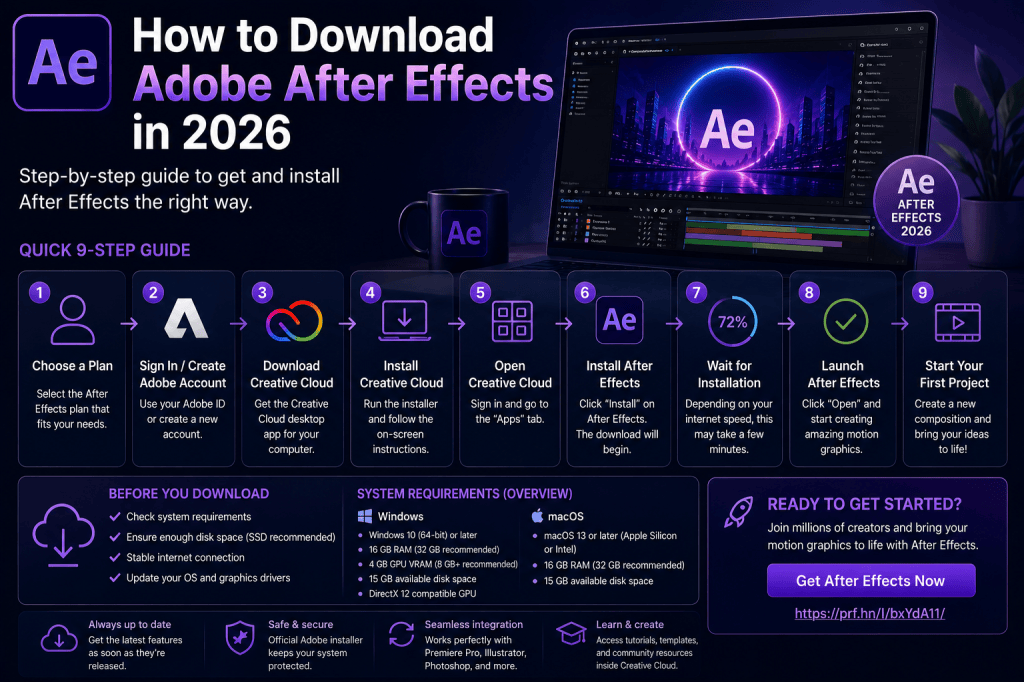
Step 1: Check Whether Your Computer Can Run After Effects
Before downloading several gigabytes of creative software, check that your computer is suitable.
After Effects can be demanding, particularly when working with:
- 4K video;
- complex compositions;
- multiple effects;
- 3D graphics;
- high-resolution assets;
- large projects;
- long previews.
The main hardware areas to consider are:
- processor;
- RAM;
- GPU;
- SSD storage;
- operating system;
- display.
Adobe’s exact minimum requirements can change as After Effects evolves, so check the current official requirements before installation.
As a practical guideline, a modern computer with 32 GB of RAM and fast SSD storage will generally provide considerably more flexibility than an entry-level machine.
For a deeper discussion, see our guide:
Adobe After Effects 2026 System Requirements: What Computer Do You Need?
Step 2: Choose an Adobe After Effects Plan
After Effects is primarily distributed through Adobe Creative Cloud subscription plans.
Depending on Adobe’s current offerings, you may be able to choose between options centered on After Effects itself and broader Creative Cloud packages.
The right choice depends on which applications you need.
After Effects Only
This approach can make sense if After Effects is the main Adobe application you intend to use.
For example, perhaps you already use another video editor but want After Effects specifically for:
- motion graphics;
- visual effects;
- animation;
- compositing.
In that case, investigate Adobe’s current individual-app options.
Multiple Creative Cloud Applications
A broader Creative Cloud option becomes more interesting when your workflow also uses applications such as:
- Premiere Pro;
- Photoshop;
- Illustrator.
Many professional motion designers regularly move between these applications.
For example:
Illustrator → vector design
Photoshop → raster-image preparation
After Effects → animation and compositing
Premiere Pro → video editing
If that resembles your workflow, compare Adobe’s broader options with an After Effects-only plan.
Check the current Adobe After Effects plans
Step 3: Create or Sign In to Your Adobe Account
Adobe uses an account to manage your Creative Cloud applications and subscription.
If you already use an Adobe product, you may already have one.
Otherwise, you’ll be guided through the account process when choosing the appropriate plan or trial.
Keep your account credentials secure because the account can be associated with:
- subscriptions;
- application access;
- Creative Cloud services;
- billing information;
- Adobe resources.
Step 4: Download the Creative Cloud Desktop Application
After Effects is managed through Adobe’s Creative Cloud desktop application.
Think of Creative Cloud as the central application manager for Adobe software.
It can be used to:
- install After Effects;
- install other Adobe applications;
- update applications;
- manage installed versions;
- access account-related features.
After signing in and choosing the appropriate Adobe option, follow Adobe’s instructions for installing Creative Cloud if it isn’t already installed.
Step 5: Open Creative Cloud
Once installed, launch the Creative Cloud desktop application.
Sign in using the Adobe account associated with your subscription or trial.
You should then be able to browse the Adobe applications available under your account.
Locate After Effects.
Step 6: Install Adobe After Effects
Select the installation option for After Effects.
Creative Cloud will download the required files and install the application.
The time required depends on factors including:
- internet connection speed;
- computer performance;
- available disk space;
- Adobe’s current installation package.
Avoid shutting down the computer while the installation is taking place.
Step 7: Launch After Effects
Once installation is complete, After Effects can be launched through Creative Cloud or from your operating system’s normal application launcher.
The first launch may take slightly longer while After Effects initializes components, preferences, plug-ins, and other resources.
Once the application opens, you can create your first project.
What Should You Do the First Time After Effects Opens?
After Effects can look intimidating when you first see the interface.
Don’t try to understand every panel immediately.
Start with the basic workflow.
You primarily need to understand five concepts:
- Project
- Composition
- Layer
- Timeline
- Keyframe
Almost everything else can be learned progressively.
Step 8: Create Your First Project
When After Effects opens, create a new project.
A project acts as the container for your work.
It can contain:
- compositions;
- imported video;
- images;
- audio;
- Illustrator files;
- Photoshop files;
- other media.
Save the project early.
This is a good habit from the beginning.
Step 9: Create a Composition
A composition is where you build an After Effects scene or animation.
Think of it as a canvas combined with a timeline.
When creating a composition, you’ll encounter settings such as:
- width;
- height;
- frame rate;
- duration.
For a basic learning project, you might choose a standard Full HD composition and a relatively short duration.
You don’t need to begin with a complicated 4K production.
Step 10: Add Some Text
One of the easiest ways to create your first animation is with text.
Create a text layer and type something simple such as:
My First After Effects Animation
You now have a layer in the Timeline.
This introduces one of the most important After Effects concepts.
Almost everything in a composition exists as a layer.
Step 11: Create Your First Keyframe Animation
Select your text layer.
Open the Transform properties.
You’ll see properties including:
- Anchor Point;
- Position;
- Scale;
- Rotation;
- Opacity.
These properties can be animated.
For example, create a Position keyframe at the beginning of the composition.
Move forward in time.
Change the Position.
After Effects creates another keyframe.
Play the composition.
Your text moves between the two positions.
Congratulations—you have created a basic After Effects animation.
Step 12: Experiment with an Effect
After Effects contains a large collection of effects.
These can modify:
- color;
- blur;
- distortion;
- lighting;
- keying;
- stylization;
- image appearance;
- many other visual properties.
Apply a simple effect to your text or another layer.
Then experiment with the settings.
Don’t worry about creating something perfect.
The goal is to understand the relationship between:
Layer → Effect → Property → Keyframe
Once that concept becomes familiar, much of After Effects begins to make sense.
What Version of After Effects Will You Download?
Creative Cloud generally provides access to the current After Effects version available under your plan and system compatibility.
During 2026, Adobe has released significant After Effects improvements across versions including 26.0, 26.2, and 26.3.
New capabilities introduced during this release cycle include:
- AI-powered Object Matte;
- parametric 3D meshes;
- Substance 3D materials;
- material displacement;
- Quick Apply;
- proportional scrubbing;
- Advanced 3D Depth of Field;
- improved SVG workflows;
- direct Illustrator/SVG copy and paste;
- faster Mask Tracker performance.
For a detailed overview, see:
Adobe After Effects 2026: What’s New and What Has Changed?
Can You Download an Older Version of After Effects?
Creative Cloud may provide access to certain previous application versions depending on Adobe’s current policies and availability.
Why would you want an older version?
Compatibility.
Professional After Effects users often depend on:
- third-party plug-ins;
- scripts;
- templates;
- expressions;
- studio pipelines;
- client projects.
A new application release can occasionally introduce compatibility issues with older tools.
For this reason, professionals sometimes keep a previous stable version installed while testing the latest release.
Should You Remove Your Old After Effects Version?
Not necessarily.
If you rely on After Effects professionally, keeping a known-working version temporarily can be useful.
Before moving an important project completely to a new release, test:
- plug-ins;
- scripts;
- templates;
- expressions;
- rendering;
- project compatibility.
Once you’re confident that everything works correctly, you can decide whether the older installation is still necessary.
Can You Install After Effects on Windows?
Yes, provided your Windows computer meets Adobe’s current system requirements.
For a modern PC, pay attention to:
- supported Windows version;
- 64-bit processor support;
- RAM;
- GPU compatibility;
- graphics drivers;
- available SSD storage.
Keeping your GPU drivers current can also help avoid graphics-related problems.
Can You Install After Effects on a Mac?
Yes.
Current After Effects versions support compatible modern Mac systems, including supported Apple Silicon hardware.
When buying a Mac specifically for After Effects, pay close attention to memory and storage.
Because memory in modern Apple Silicon Macs is integrated, it generally cannot be upgraded later.
Choosing sufficient memory at purchase is therefore particularly important.
How Much RAM Should You Have Before Installing After Effects?
A computer with more RAM will generally provide a better After Effects experience.
As a practical guide:
16 GB
Can be workable for learning and lighter projects.
32 GB
A much stronger target for regular motion-design work.
64 GB
Useful for professional workflows, larger compositions, 4K projects, and heavier multitasking.
128 GB+
Relevant primarily to demanding professional production environments.
After Effects uses memory extensively for previews and processing.
More RAM can therefore have a noticeable effect on productivity.
Should After Effects Be Installed on an SSD?
Yes, whenever possible.
An SSD provides much faster storage access than a traditional mechanical hard drive.
This can improve:
- application loading;
- asset access;
- cache performance;
- general responsiveness.
NVMe SSDs are particularly attractive for modern creative workstations.
Also leave plenty of free disk space.
After Effects can create a substantial disk cache.
How Much Storage Does After Effects Need?
Don’t think only about the application’s installation size.
Your real storage requirements include:
- After Effects;
- Creative Cloud;
- plug-ins;
- project files;
- source footage;
- images;
- audio;
- rendered files;
- disk cache.
Video projects can consume hundreds of gigabytes surprisingly quickly.
For a new creative workstation, a 1 TB SSD is often much more practical than a small system drive.
Professional users may require multiple terabytes.
Do You Need an Internet Connection?
You’ll need internet access for downloading After Effects and for certain Adobe account, activation, update, cloud, and online functionality.
Specific connectivity and activation requirements can change, so check Adobe’s current terms if you need to work in an environment with restricted internet access.
How to Update After Effects
One benefit of the Creative Cloud system is centralized application updates.
When Adobe releases a new compatible After Effects version, Creative Cloud can make the update available.
However, professionals should avoid automatically updating critical production systems without considering compatibility.
Before installing a major update:
- Finish or back up important projects.
- Check plug-in compatibility.
- Check script compatibility.
- Review major known issues.
- Consider keeping the previous version installed.
- Test the new version.
This approach can prevent an update from disrupting client work.
What If After Effects Won’t Install?
Installation problems can have several causes.
Start with the basics.
Check:
- internet connectivity;
- available disk space;
- operating-system compatibility;
- Adobe account status;
- Creative Cloud updates;
- system restart status.
If the installer reports a specific error code, search Adobe’s support documentation for that exact code.
Error codes are much more useful than a generic message such as “After Effects won’t install.”
What If After Effects Runs Slowly?
Installing After Effects successfully doesn’t guarantee that every project will run smoothly.
Performance depends on:
- composition resolution;
- effects;
- source footage;
- RAM;
- CPU;
- GPU;
- disk cache;
- storage speed;
- other running applications.
If performance is poor, try:
- lowering preview resolution;
- closing unnecessary applications;
- allocating more resources to After Effects;
- using proxies;
- clearing or managing cache;
- optimizing source media;
- simplifying heavy effects while working.
Performance optimization is a skill in itself.
Should You Install Plug-Ins Immediately?
Beginners often see impressive After Effects plug-ins and assume they need dozens of them.
You don’t.
Learn the native application first.
After Effects already contains an enormous collection of tools.
Start with:
- keyframes;
- shape layers;
- masks;
- text animation;
- effects;
- pre-compositions;
- parenting;
- tracking.
Once you understand the native workflow, you’ll have a much better idea of which plug-ins actually solve problems for you.
Is After Effects Difficult to Learn?
After Effects has a significant learning curve, but it becomes much easier when you learn concepts in the right order.
Don’t begin with complicated Hollywood-style visual effects.
Start with basic animation.
A sensible progression is:
- Interface
- Compositions
- Layers
- Transform properties
- Keyframes
- Text
- Shape layers
- Masks
- Effects
- Pre-compositions
- Tracking
- Expressions
- 3D
This gives each new concept something to build on.
Is After Effects Free to Download?
The installer itself may be obtained through Adobe’s Creative Cloud workflow, but continued use of After Effects is generally associated with an eligible Adobe plan.
Adobe may offer trial access under current terms.
Be cautious of websites advertising a permanently “free full version” of current After Effects software outside Adobe’s legitimate distribution channels.
Can You Try After Effects Before Paying?
Adobe may offer a trial depending on its current terms and offers.
A trial can be particularly useful if you’re unsure about:
- computer performance;
- the interface;
- the learning curve;
- whether you need After Effects;
- whether it fits your workflow.
Rather than simply launching After Effects once, use the trial period to complete a small project.
That provides a much more meaningful evaluation.
Check the current Adobe After Effects trial and download options
After Effects vs Premiere Pro: Which Should You Download?
Choose based on what you want to do.
Choose Premiere Pro primarily for:
- video editing;
- arranging clips;
- editing interviews;
- long-form video;
- timeline editing;
- audio/video assembly.
Choose After Effects primarily for:
- motion graphics;
- animation;
- compositing;
- visual effects;
- tracked graphics;
- animated titles;
- advanced video effects.
Many professional creators use both.
After Effects vs Blender: Which Should You Download?
Again, they solve different problems.
Choose Blender primarily for sophisticated:
- 3D modeling;
- sculpting;
- simulation;
- 3D animation;
- 3D rendering.
Choose After Effects primarily for:
- motion graphics;
- compositing;
- typography;
- video effects;
- 2D animation;
- mixed-media animation.
After Effects’ native 3D capabilities have improved significantly, but it isn’t intended to replace a complete 3D application for every workflow.
Is Adobe After Effects Worth Downloading in 2026?
For motion design and visual effects, absolutely worth evaluating.
After Effects combines an unusually broad set of capabilities:
- animation;
- typography;
- compositing;
- tracking;
- masks;
- visual effects;
- expressions;
- AI-assisted workflows;
- 2D graphics;
- increasingly sophisticated 3D tools.
The 2026 releases make it particularly interesting because Adobe is adding tools designed to reduce repetitive work while expanding what can be created natively.
Before You Download: Quick Checklist
Before starting, confirm that:
- your operating system is supported;
- your computer has sufficient RAM;
- you have enough free SSD space;
- your GPU is compatible;
- you understand the Adobe plan you’re selecting;
- you know the commitment and billing terms;
- you have an Adobe account;
- important existing plug-ins are compatible if upgrading.
Once those points are covered, installation should be straightforward.
Download Adobe After Effects
Ready to get started?
You can check Adobe’s current After Effects options, pricing, and availability through the link below.
Download Adobe After Effects and view the current plans
Once After Effects is installed, don’t try to master everything immediately.
Create one composition.
Add one object.
Set two keyframes.
Watch it move.
That simple exercise introduces the fundamental concept behind almost everything you’ll eventually create in After Effects.
Final Thoughts
Downloading Adobe After Effects in 2026 is relatively simple.
The basic process is:
Choose your Adobe option → Sign in → Install Creative Cloud → Install After Effects → Create your first project.
The more important decision is making sure After Effects is actually the right application for your needs.
If you want professional motion graphics, compositing, animated typography, tracking, or visual effects, After Effects remains an extremely capable platform.
If you simply need basic video editing, a dedicated video editor may be a better starting point.
And if you’re uncertain, testing After Effects with a small real-world project is one of the best ways to decide.