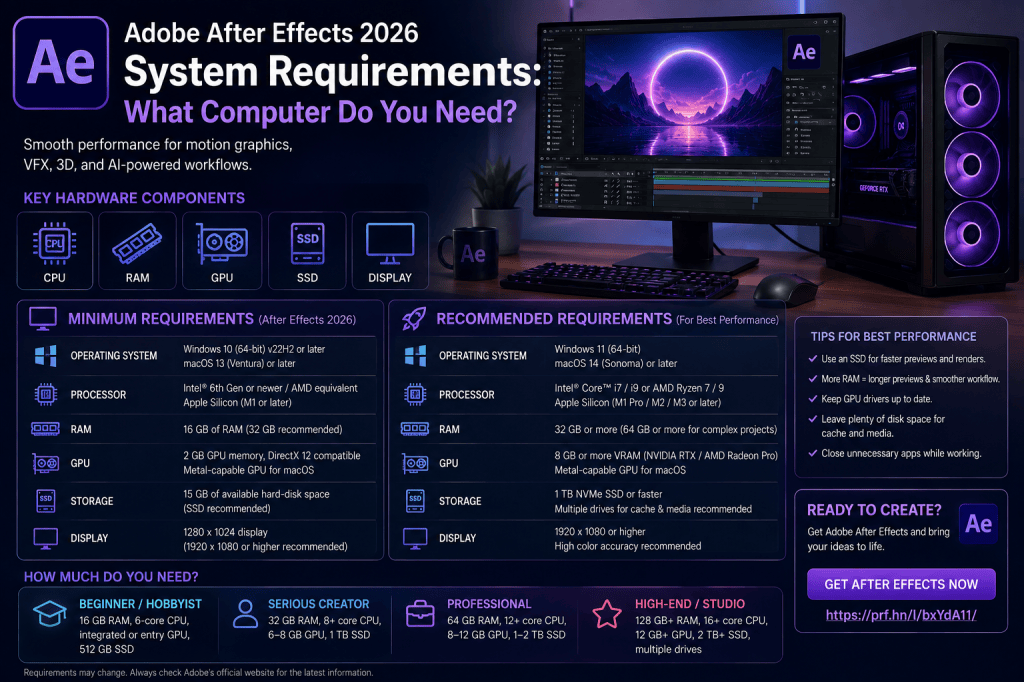
Adobe After Effects is one of the most powerful applications available for motion graphics, animation, compositing, and visual effects—but that power comes with demanding hardware requirements.
If you’re planning to install Adobe After Effects in 2026, one of the most important questions is:
What computer do you actually need to run After Effects well?
There is an important distinction between a computer that can technically launch After Effects and a computer that provides a comfortable professional workflow.
Processor performance, RAM, GPU capability, storage speed, available disk space, display resolution, and the complexity of your projects can all affect performance.
And as After Effects expands into AI-assisted workflows, Advanced 3D, 3D models, parametric meshes, Substance materials, and higher-resolution video, hardware becomes increasingly important.
In this guide, we’ll examine what you should look for in a Windows PC or Mac for Adobe After Effects in 2026.
Affiliate disclosure: This article contains affiliate links. If you purchase Adobe After Effects through one of these links, we may earn a commission at no additional cost to you.
After Effects Minimum Requirements vs Recommended Hardware
Before looking at individual components, it is important to understand what “minimum system requirements” actually means.
Minimum requirements generally describe the hardware and software necessary to run an application.
They do not necessarily describe the hardware you would want for eight hours of professional motion-design work.
This distinction is particularly important with After Effects.
A relatively modest computer may be capable of opening the application and handling a simple 1080p composition.
That same computer may struggle badly with:
- 4K footage;
- large compositions;
- complex effects;
- heavy motion blur;
- multiple pre-compositions;
- 3D models;
- particle systems;
- large Photoshop files;
- high-resolution Illustrator artwork;
- long previews;
- multiple Adobe applications running simultaneously.
When buying a new computer, it is therefore better to think about your actual workload than simply trying to meet the lowest possible specification.
What Matters Most for After Effects?
The main hardware components affecting After Effects performance are:
- CPU;
- RAM;
- GPU;
- SSD/storage;
- available cache space;
- display;
- operating system.
For most users, CPU performance and RAM remain particularly important, while GPU performance becomes increasingly relevant for GPU-accelerated effects and modern 3D workflows.
Fast storage is also easy to underestimate.
After Effects frequently reads and writes large quantities of cached data, making SSD performance important to overall responsiveness.
1. Processor: What CPU Does After Effects Need?
The CPU remains one of the most important components in an After Effects workstation.
After Effects performs many calculations involving:
- effects;
- expressions;
- animation;
- compositing;
- decoding footage;
- rendering;
- preview generation.
Modern versions of After Effects can also use multiple CPU cores through features such as Multi-Frame Rendering.
That means both single-core performance and multi-core capability matter.
Intel or AMD?
On Windows, both modern Intel and AMD processors can provide excellent After Effects performance.
You don’t need to choose a computer purely because of the brand printed on the processor.
Instead, consider:
- processor generation;
- number of performance cores;
- clock performance;
- thermal performance;
- overall benchmark performance;
- laptop versus desktop power limits.
A modern mid-range or high-end CPU is generally a better investment than an old processor with a high advertised core count.
What about Apple Silicon?
Modern Macs use Apple Silicon.
After Effects runs natively on current Apple Silicon systems, making Macs with Apple chips a viable option for motion-design workflows.
When comparing Macs, pay particular attention to memory configuration because memory is integrated into the system and normally cannot be upgraded later.
2. How Much RAM Does After Effects Need?
If there is one specification After Effects users should avoid underestimating, it is RAM.
After Effects can consume large amounts of memory when generating previews and working with complex compositions.
The amount you need depends heavily on your projects.
16 GB RAM
16 GB can work for lighter After Effects usage.
It may be sufficient for:
- learning After Effects;
- simple 1080p animations;
- basic text animation;
- relatively small compositions;
- occasional motion graphics.
However, 16 GB can become restrictive quickly.
If you also run Photoshop, Illustrator, Premiere Pro, a browser, and other applications simultaneously, available memory can disappear rapidly.
32 GB RAM
For many serious After Effects users, 32 GB is a much more comfortable starting point.
It provides additional space for:
- larger previews;
- more complex compositions;
- 4K projects;
- multitasking;
- larger assets;
- Multi-Frame Rendering.
For a new After Effects workstation in 2026, 32 GB is a sensible target for users who expect to work regularly rather than occasionally.
64 GB RAM
64 GB becomes attractive for professional users working with:
- complex 4K projects;
- long compositions;
- large multi-layer projects;
- 3D assets;
- demanding effects;
- large Photoshop documents;
- Premiere Pro and After Effects simultaneously;
- professional production workloads.
The extra memory can allow After Effects to cache more frames and provide a smoother workflow.
128 GB and Beyond
Very high memory configurations are primarily relevant to demanding professional environments.
Large studios and artists working with extremely complex compositions, high-resolution footage, extensive Multi-Frame Rendering, or multiple professional applications may benefit.
But most beginners do not need to immediately purchase 128 GB of RAM.
How Much RAM Should You Buy?
A practical way to think about it is:
16 GB — Entry level
Suitable for learning and lighter projects.
32 GB — Recommended for serious users
A strong target for most new workstations.
64 GB — Professional
Excellent for complex motion graphics and heavier 4K workflows.
128 GB+ — High-end production
Useful for demanding professional workloads.
If your budget allows only one major upgrade beyond an entry-level configuration, additional RAM can often be a very worthwhile investment for After Effects.
3. Does After Effects Need a Powerful GPU?
After Effects has traditionally been less GPU-dependent than some 3D applications, but the GPU has become increasingly important.
Modern After Effects workflows can use GPU acceleration for various effects and rendering tasks.
The expanding Advanced 3D environment makes graphics capability even more relevant.
GPU-intensive workflows can include:
- Advanced 3D;
- 3D models;
- GPU-accelerated effects;
- high-resolution compositions;
- certain plug-ins;
- complex visual effects.
Do Beginners Need an Expensive GPU?
Not necessarily.
If you’re mainly learning:
- keyframes;
- shape layers;
- typography;
- masks;
- basic compositing;
- simple effects;
a reasonable modern GPU can be sufficient.
You don’t need the most expensive graphics card available just to learn After Effects.
When Does a Better GPU Make Sense?
Consider investing more heavily in GPU capability if you expect to work with:
- Advanced 3D;
- 3D models;
- Substance materials;
- demanding GPU effects;
- 4K or higher resolutions;
- professional plug-ins;
- multiple GPU-accelerated applications.
The 2026 expansion of After Effects’ native 3D capabilities makes this increasingly relevant.
4. Storage: SSD Is Essential
A modern After Effects computer should use an SSD.
Traditional mechanical hard drives are significantly slower and can create unnecessary bottlenecks.
After Effects interacts with storage for several purposes:
- loading footage;
- reading assets;
- saving projects;
- caching frames;
- writing previews;
- rendering files.
A fast SSD can therefore improve the overall responsiveness of your workstation.
NVMe SSD vs SATA SSD
Both are considerably faster than traditional hard drives, but modern NVMe SSDs provide substantially higher potential throughput.
For a new workstation, NVMe storage is generally preferable.
5. Don’t Forget the After Effects Disk Cache
After Effects uses disk cache to store rendered frames and other information that can be reused.
This can dramatically improve performance when revisiting portions of a composition.
However, the cache can become large.
That means you should not buy a computer with barely enough storage for Windows or macOS and your applications.
After Effects benefits from having plenty of free SSD space available.
For heavier workflows, some professionals use separate storage for:
- operating system and applications;
- project media;
- cache;
- completed projects and archives.
You don’t necessarily need that configuration as a beginner, but understanding the role of cache storage helps explain why After Effects can consume so much disk space.
6. How Much SSD Storage Should You Buy?
The right amount depends on your workflow.
512 GB
This can work for basic use, but it may become restrictive quickly once applications, cache files, footage, and project assets accumulate.
1 TB
For many users, 1 TB is a much more practical starting point.
It gives the operating system, Adobe applications, cache, and active projects more breathing room.
2 TB
A 2 TB SSD is attractive for professional creators who regularly work with large video files and multiple active projects.
Larger Storage
High-resolution video production can consume enormous amounts of storage.
Professional users often combine fast internal SSDs with external SSDs, network storage, or larger archival drives.
7. Windows 11 and After Effects
For a new Windows workstation in 2026, Windows 11 is the logical platform.
The important considerations include:
- using a supported 64-bit Windows version;
- keeping graphics drivers current;
- installing current chipset and system drivers;
- maintaining sufficient SSD space;
- ensuring your hardware supports current Adobe releases.
If you’re using a very old Windows computer, the operating system may not be the only problem.
Older CPUs, GPUs, and drivers may also lack capabilities expected by current creative software.
8. Mac Requirements for After Effects
After Effects also runs on modern Macs.
Apple Silicon systems can provide strong performance while offering good power efficiency, particularly in laptops.
When choosing a Mac for After Effects, pay particular attention to:
- Apple chip generation;
- CPU/GPU configuration;
- unified memory;
- SSD capacity;
- display configuration.
The most important purchasing decision may be memory.
Because unified memory is integrated into Apple Silicon Macs, you generally cannot buy a low-memory configuration and upgrade it later.
For regular After Effects work, buying sufficient memory from the beginning is therefore important.
9. Laptop vs Desktop for After Effects
Both can run After Effects effectively.
The right choice depends on whether portability or maximum performance matters more.
Laptop Advantages
A laptop provides:
- portability;
- integrated display;
- compact setup;
- ability to work from different locations;
- easier travel.
Modern high-performance laptops can handle serious After Effects work.
Laptop Disadvantages
High-performance laptops may face:
- thermal limitations;
- fan noise;
- reduced sustained performance;
- limited upgradeability;
- higher cost for equivalent performance.
Desktop Advantages
A desktop generally provides:
- better cooling;
- higher sustained performance;
- easier upgrades;
- more RAM capacity;
- more storage options;
- larger GPU choices;
- better price/performance potential.
For a permanent professional workstation, a desktop can therefore be an excellent choice.
10. What Computer Do Beginners Need?
A beginner does not need an extreme workstation.
If you’re learning After Effects, a sensible computer might have:
- a modern multi-core processor;
- 16–32 GB RAM;
- a modern supported GPU;
- 1 TB SSD;
- a Full HD or higher-resolution display.
If budget permits, I would prioritize 32 GB RAM and a larger SSD over spending everything on the highest-end GPU.
This provides a balanced system that can grow with your skills.
11. Recommended After Effects Computer for Serious Users
For someone planning to use After Effects regularly for professional or semi-professional work, a stronger target would be:
- modern high-performance CPU;
- 32–64 GB RAM;
- capable modern GPU;
- 1–2 TB fast NVMe SSD;
- additional storage for projects;
- high-resolution display.
This configuration should handle considerably more demanding projects while providing enough memory for multitasking.
12. Recommended Workstation for Professional Users
Professional users may consider:
- high-end modern CPU;
- 64–128 GB RAM or more;
- high-performance GPU;
- 2 TB or larger fast internal SSD;
- dedicated cache storage;
- additional project/media storage;
- color-accurate high-resolution displays;
- reliable backup infrastructure.
The exact configuration should depend on the type of work.
A motion designer creating animated advertising graphics has different requirements from a VFX artist processing large high-resolution plates.
After Effects and 4K Video
4K changes hardware requirements substantially.
A 4K frame contains four times as many pixels as a 1080p frame.
That affects:
- memory consumption;
- preview generation;
- storage;
- decoding;
- effects processing;
- rendering.
If you expect to work heavily in 4K, 32 GB of RAM should be considered a much more practical baseline, with 64 GB attractive for more complex professional projects.
Fast SSD storage also becomes increasingly important because 4K source footage can be very large.
What About 6K and 8K?
Higher resolutions increase the workload further.
Professional 6K and 8K workflows may benefit from:
- substantially more RAM;
- powerful CPUs;
- stronger GPUs;
- very fast storage;
- proxy workflows;
- optimized codecs;
- carefully managed cache.
Simply purchasing the fastest computer possible is not always the solution.
Efficient workflow design becomes increasingly important as resolution increases.
Multi-Frame Rendering and RAM
Modern After Effects can render multiple frames concurrently.
This can improve performance on CPUs with multiple cores.
However, rendering multiple frames simultaneously also increases memory demand.
This is another reason additional RAM can improve performance on modern multi-core systems.
A powerful CPU combined with insufficient memory may not achieve its full potential.
Balanced hardware matters.
After Effects 2026 and Advanced 3D
The 2026 releases make hardware considerations particularly interesting because After Effects is becoming more capable in 3D.
Newer workflows can involve:
- parametric meshes;
- Substance 3D materials;
- material displacement;
- 3D models;
- multiple lights;
- shadows;
- Advanced 3D Depth of Field.
If you intend to use these capabilities extensively, prioritize a well-balanced system with a capable GPU rather than treating graphics hardware as an afterthought.
Do AI Features Require Better Hardware?
AI-assisted tools can add additional processing demands depending on how the feature is implemented.
After Effects 2026 introduces AI-powered workflows such as Object Matte.
For users interested in AI-assisted visual-effects work, running current hardware with sufficient memory and modern graphics capabilities is a sensible approach.
As Adobe continues expanding AI features, newer hardware is also more likely to remain useful over the life of the computer.
Can You Run After Effects on 8 GB RAM?
A computer with only 8 GB of RAM is not a configuration I would recommend for a new After Effects workstation in 2026.
Even if a particular installation or older version technically launches, the operating system and other applications already consume part of that memory.
That leaves relatively little available for After Effects.
The result can be:
- short previews;
- frequent memory pressure;
- slow multitasking;
- disk swapping;
- poor performance with complex projects.
If you’re purchasing specifically for After Effects, aim higher.
Is 16 GB Enough for After Effects?
For learning and relatively light projects, 16 GB can be workable.
But it should be viewed as an entry-level configuration rather than an ideal professional target.
If you frequently run After Effects alongside Photoshop, Illustrator, Premiere Pro, and a web browser, 32 GB provides considerably more flexibility.
Is 32 GB Enough for After Effects?
For many users, yes.
32 GB is a good balance between cost and capability for:
- motion graphics;
- 1080p projects;
- moderate 4K projects;
- typography;
- compositing;
- animation;
- Adobe application multitasking.
It is a strong starting point for a new serious-use workstation.
Is 64 GB Worth It?
For professional users, often yes.
The additional memory can be particularly useful for:
- longer RAM previews;
- larger compositions;
- Multi-Frame Rendering;
- complex 4K work;
- multiple Adobe applications;
- large assets;
- heavier visual-effects projects.
If After Effects generates income for you, the productivity benefit can justify the additional cost.
Don’t Build an Unbalanced Computer
A common mistake is concentrating entirely on one specification.
For example:
Huge GPU + insufficient RAM
or
128 GB RAM + very old CPU
or
Powerful CPU + tiny SSD
After Effects benefits from a balanced workstation.
Think of the computer as a system:
CPU + RAM + GPU + SSD + cooling + storage capacity
All of these components affect the overall experience.
Check Adobe’s Current Requirements Before Buying
System requirements can change between After Effects releases.
Adobe may also change support for particular operating systems, processors, GPUs, and hardware features.
Therefore, always check Adobe’s current official After Effects system requirements before purchasing expensive hardware.
This is particularly important if you’re considering:
- an older refurbished workstation;
- an older Mac;
- an older GPU;
- unusual hardware;
- professional plug-ins;
- specialized video hardware.
Ready to Try After Effects?
Once you’ve confirmed that your computer meets the current requirements, you can install After Effects through Adobe.
View Adobe After Effects plans and get the latest version
If you’re unsure whether After Effects will perform adequately on your system, using Adobe’s available trial option can also be a practical way to test the application with your actual projects before committing to a longer-term workflow.
Recommended After Effects PC in 2026: Practical Summary
For someone buying a new Windows PC specifically for After Effects, I would broadly target:
Beginner
Modern CPU
16–32 GB RAM
Modern supported GPU
1 TB SSD
Serious Creator
High-performance modern CPU
32–64 GB RAM
Capable GPU
1–2 TB NVMe SSD
Professional
High-end CPU
64 GB+ RAM
High-performance GPU
2 TB+ fast SSD
Additional cache/project storage
These are practical targets rather than rigid requirements.
Your actual needs depend on the projects you create.
Recommended Mac for After Effects in 2026
For Mac users, prioritize:
Apple Silicon
Choose a current Apple Silicon system appropriate to your workload.
Memory
Avoid underestimating unified memory because it cannot generally be upgraded later.
Storage
Choose enough internal SSD capacity for applications and active workflows, with external storage available for larger media libraries if required.
For regular professional After Effects use, more memory and storage generally provide greater long-term flexibility than the lowest-cost configuration.
Final Thoughts
The best computer for Adobe After Effects 2026 is not necessarily the computer with the most expensive graphics card or the largest number printed on a specification sheet.
After Effects benefits from a balanced system.
CPU performance matters.
RAM matters enormously.
GPU capability is becoming increasingly relevant as Advanced 3D expands.
Fast SSD storage improves caching and asset handling.
And sufficient storage capacity prevents large projects and disk cache from overwhelming the system.
For beginners, 16 GB can be workable, but 32 GB RAM with a modern CPU and a fast 1 TB SSD is a much stronger target for a new system.
Professional users should consider 64 GB or more, particularly when working with complex 4K compositions, large assets, 3D workflows, or multiple Adobe applications simultaneously.
Most importantly, don’t build a computer merely to satisfy today’s minimum specification.
If you’re investing in a new After Effects workstation, leave enough performance headroom for the projects you expect to create over the next several years.



 Adobe After Effects