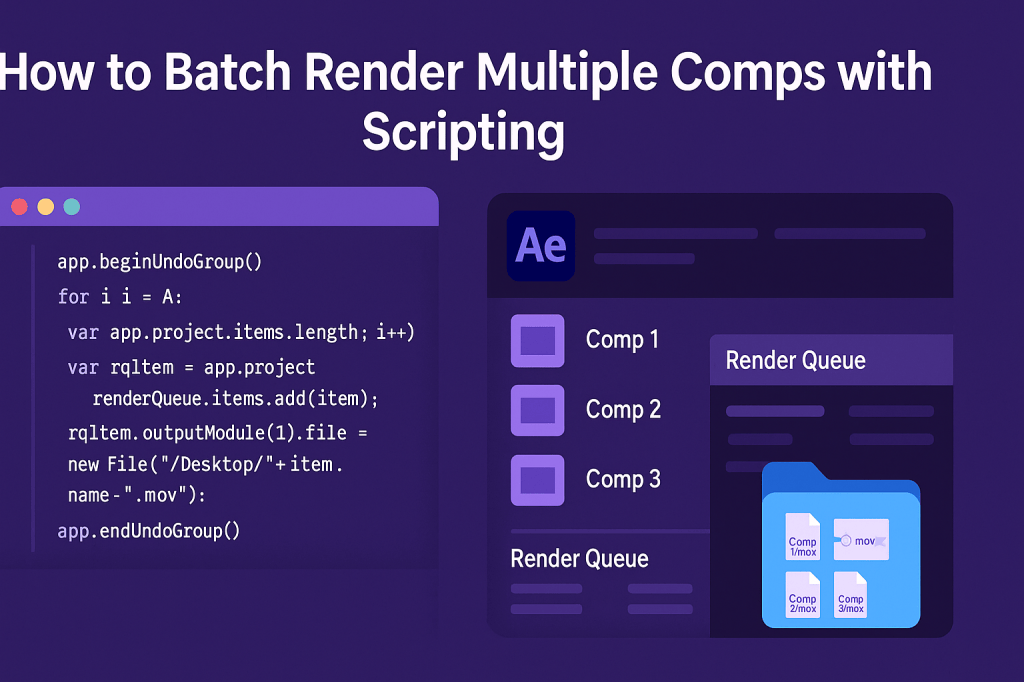
Rendering is often one of the most time-consuming steps in After Effects. If you’re working on multiple compositions, adding each one to the Render Queue manually can be tedious. With scripting, you can batch render multiple comps automatically and save hours of setup time.
🎬 Why Batch Render with Scripts?
- Efficiency: Add multiple comps to the Render Queue in one click.
- Consistency: Apply the same render settings to all comps.
- Scalability: Handle dozens of comps for large projects.
- Error Reduction: Avoid missing a comp or forgetting settings.
🎨 Step 1: Access the Render Queue via Scripting
In ExtendScript, After Effects exposes the Render Queue API. Each composition can be sent to the queue programmatically.
⚡ Example Script: Batch Render All Comps
// Batch Render All Comps in the Project
app.beginUndoGroup("Batch Render");

for (var i = 1; i <= app.project.items.length; i++) {
    var item = app.project.items[i];
    if (item instanceof CompItem) {
        var rqItem = app.project.renderQueue.items.add(item);
        rqItem.outputModule(1).file = new File("~/Desktop/" + item.name + ".mov");
    }
}

app.endUndoGroup();
👉 This script adds every comp in the project to the Render Queue and sets the output to your Desktop as .mov files.
🎬 Step 2: Customize Render Settings
- Output Path: Replace
~/Desktop/with a folder of your choice. - Format: Change
.movto.mp4or another extension (based on your Output Module settings). - Selective Rendering: Add conditions, e.g., only comps with a certain name prefix.
Example: Render only comps starting with FINAL_:
if (item.name.indexOf("FINAL_") === 0) {
    // add to render queue
}
✨ Step 3: Pro Tips
- Use Output Templates for consistent file formats.
- Combine with watch folders in Adobe Media Encoder for background rendering.
- Keep file names unique to avoid overwriting.
- Test on small projects before running big batch scripts.
🧪 Advanced Idea
Write a script that:
- Prompts the user for an output folder.
- Renders only selected comps.
- Saves a log file of rendered items.
This makes it a mini custom render manager inside AE.
🎯 Final Thoughts
Batch rendering with scripts can transform your workflow, especially for projects with multiple comps. Once you master Render Queue scripting, you can create your own powerful automation tools.
👉 Want to try it? Download Adobe After Effects free trial and run your first batch render script today.