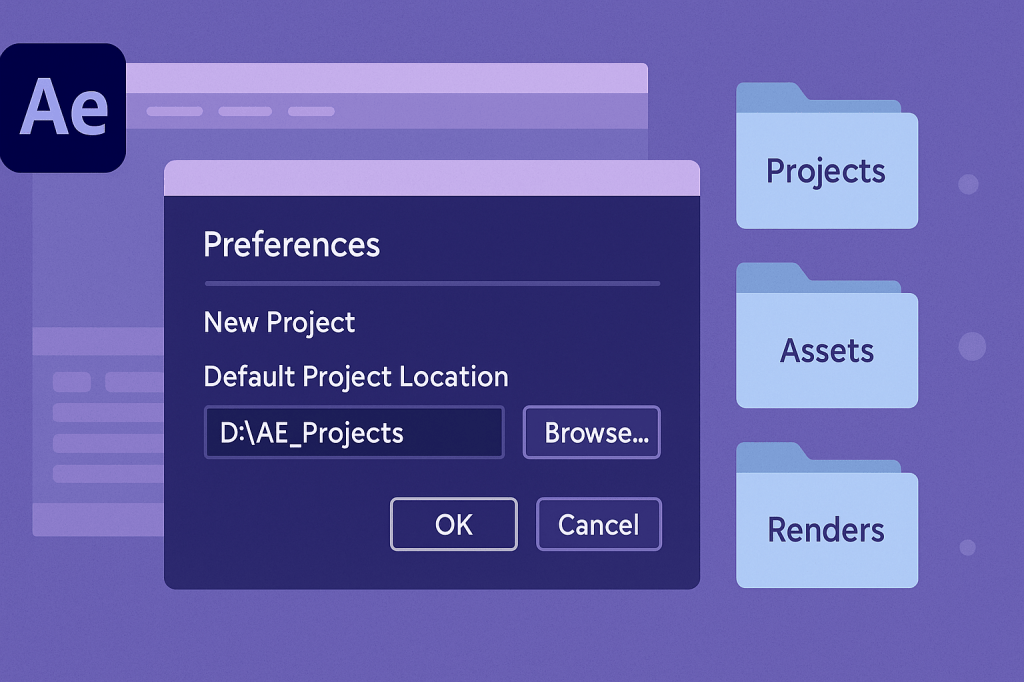
By default, After Effects saves new projects to your system’s Documents folder. While this works for some users, professionals often prefer to save projects in a custom location — such as a dedicated drive, a shared team folder, or a project-based directory. Changing the default project location saves time and keeps your workflow organized.
🎬 Why Change the Default Project Location?
- Organization: Keep all AE projects in one central folder.
- Speed: Store projects on a fast SSD for quicker access.
- Collaboration: Use a shared network or cloud drive.
- Backup: Save directly to synced folders (Dropbox, Google Drive, etc.).
⚡ Step 1: Open After Effects Preferences
- Launch After Effects.
- Go to the Edit (Windows) or After Effects (Mac) menu.
- Select Preferences > New Project.
🎨 Step 2: Set the Default Project Location
- In the New Project Preferences window, look for Default Location.
- Click Browse and select your desired folder.
- Apply changes and click OK.
👉 From now on, every new project will open in that folder by default.
🛠️ Step 3: Best Practices for Project Locations
- Use a dedicated Projects folder (e.g.,
D:/AE_Projects). - For teams: Set location to a shared drive.
- For cloud backup: Choose Dropbox/Google Drive/Creative Cloud Files.
- Keep your footage and assets in a subfolder near the project file.
✨ Pro Tip: Save as Template
- Create a project with your folder structure (Assets, Precomps, Renders).
- Save it as a Project Template.
- After Effects can use this template for every new project (Preferences > New Project > New Project Loads Template).
🎯 Final Thoughts
Changing the default project location in After Effects is a small tweak with big productivity benefits. It ensures that all your projects start in the right place, saving you time and keeping your workflow consistent.
👉 Want to optimize your setup? Download Adobe After Effects free trial and set your default project location today.




 Adobe After Effects