Expressions in After Effects are like mini-scripts that let you automate animation. Instead of setting dozens of keyframes, you can use a simple line of code to create looping, bouncing, or randomized effects. This makes your workflow faster and more powerful.
🤔 What Are Expressions?
Expressions are snippets of JavaScript that control layer properties.
- They save time by replacing manual keyframes.
- They create dynamic animations that update automatically.
- They can link multiple layers for synced motion.
👉 You don’t need to be a programmer to use them — many expressions are short and beginner-friendly.
🎬 How to Add an Expression
- Select a property (like Position, Scale, or Rotation).
- Hold Alt/Option + Click the stopwatch.
- A text box appears where you can type or paste an expression.
⚡ Common Expressions for Beginners
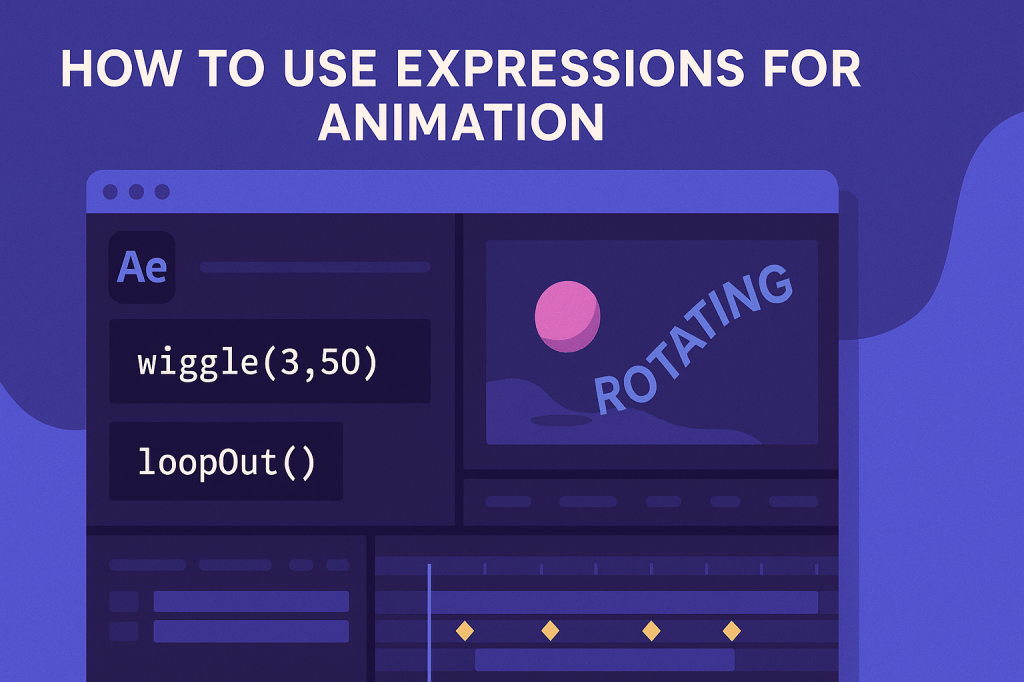
- Looping Animation
loopOut()
Repeats an animation endlessly.
- Wiggle (Random Motion)
wiggle(3, 50)
Moves a property randomly: 3 times per second, up to 50 pixels/units.
- Bounce Effect
amp = .05;
freq = 4.0;
decay = 2.0;
n = 0;
if (numKeys > 0){
  n = nearestKey(time).index;
  if (key(n).time > time){n--;}
}
if (n == 0){ t = 0;
}else{t = time - key(n).time;}
if (n > 0){
  v = velocityAtTime(key(n).time - thisComp.frameDuration/10);
  value + v*amp*Math.sin(freq*t*2*Math.PI)/Math.exp(decay*t);
}else{value}
Adds a natural bounce after movement.
- Link Properties
thisComp.layer("Logo").transform.position
Links one layer’s position to another’s.
🎨 Real-World Uses
- Looping background animations.
- Random camera shakes for handheld effect.
- Automatic blinking, flashing, or pulsing.
- Linking multiple layers for synced logo animations.
🧪 Pro Tips
- Combine keyframes + expressions for best results.
- Use the Expression Language Menu (right side of the editor) for code snippets.
- Debug with the error warning if something doesn’t work.
- Save reusable expressions as presets.
🎯 Final Thoughts
Expressions can feel intimidating at first, but even simple ones like loopOut() and wiggle() will instantly improve your workflow. They let you create complex, professional animations with minimal effort.
👉 Want to try it yourself? Download Adobe After Effects free trial and start automating your animations today.