After Effects projects can get complex — and nothing is worse than losing hours of work due to a crash or power outage. Fortunately, After Effects includes an Auto-Save feature that regularly saves backup copies of your project. Setting it up properly ensures you can recover your work anytime.
🎬 Why Use Auto-Save?
- Prevents data loss in case of crashes.
- Keeps multiple versions of your project for backup.
- Saves time by letting you restore earlier project states.
- Essential for large projects or when working under deadlines.
⚡ Step 1: Access Auto-Save Settings
- Open After Effects.
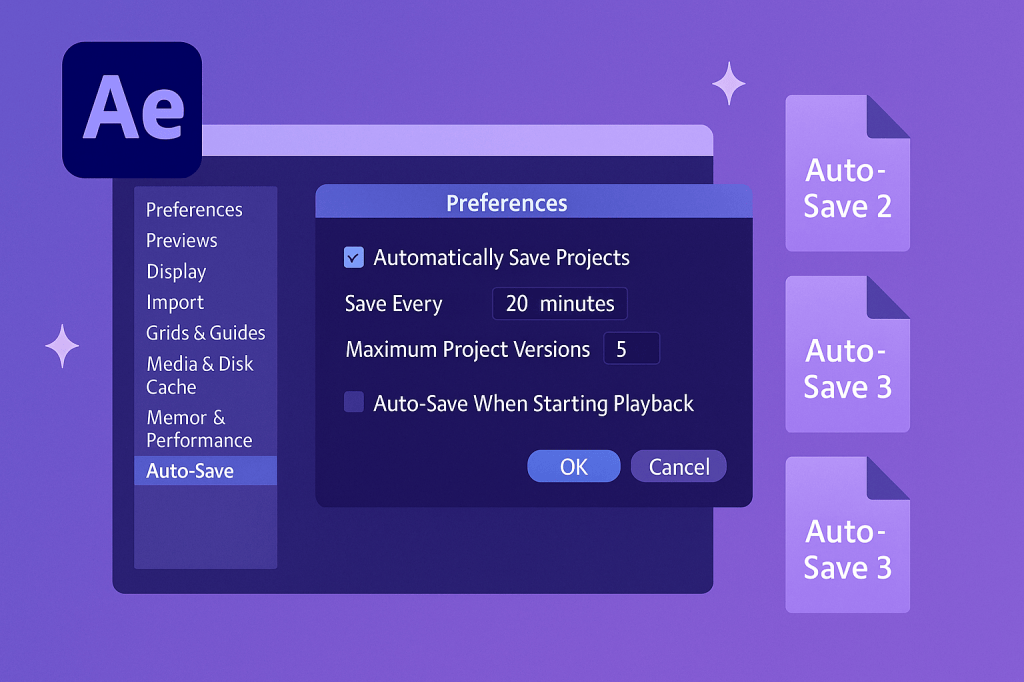
- Go to Edit (Windows) / After Effects (Mac) > Preferences > Auto-Save.
- The Auto-Save Preferences window appears.
🎨 Step 2: Enable Auto-Save
- Check the box for Automatically Save Projects.
- By default, AE saves every 20 minutes, but you can change this.
👉 Recommended setting: Every 5–10 minutes for busy projects.
🛠️ Step 3: Customize Auto-Save Options
- Number of Versions: Choose how many backup files to keep.
- Example: 5 versions → AE deletes the oldest when a new one is created.
- Save Location:
- By default, Auto-Saves go into a folder called Adobe After Effects Auto-Save inside your project folder.
- You can change this to another drive or backup location.
- Auto-Save When Closing: Ensure the latest state is saved when you exit AE.
🎬 Step 4: Restoring from Auto-Save
- Navigate to your project’s Auto-Save folder.
- Open the most recent backup file (e.g.,
Project_Auto-Save 3.aep). - Continue working from that version.
👉 This is a lifesaver if your main project becomes corrupted.
✨ Best Practices for Auto-Save
- Use a dedicated drive: Store Auto-Saves on a separate SSD or cloud folder for extra security.
- Combine with manual saves: Press Ctrl/Cmd + S frequently anyway.
- Keep backups organized: Rename important versions (e.g.,
Project_Final_v2.aep). - For teams: Store Auto-Saves in a shared folder to reduce lost work.
🎯 Final Thoughts
Auto-Save is your safety net in After Effects. With the right setup, you’ll never lose significant progress — even if the unexpected happens. Adjust the interval, version count, and save location to match your workflow and project size.
👉 Want to secure your projects? Download Adobe After Effects free trial and set up Auto-Save today.