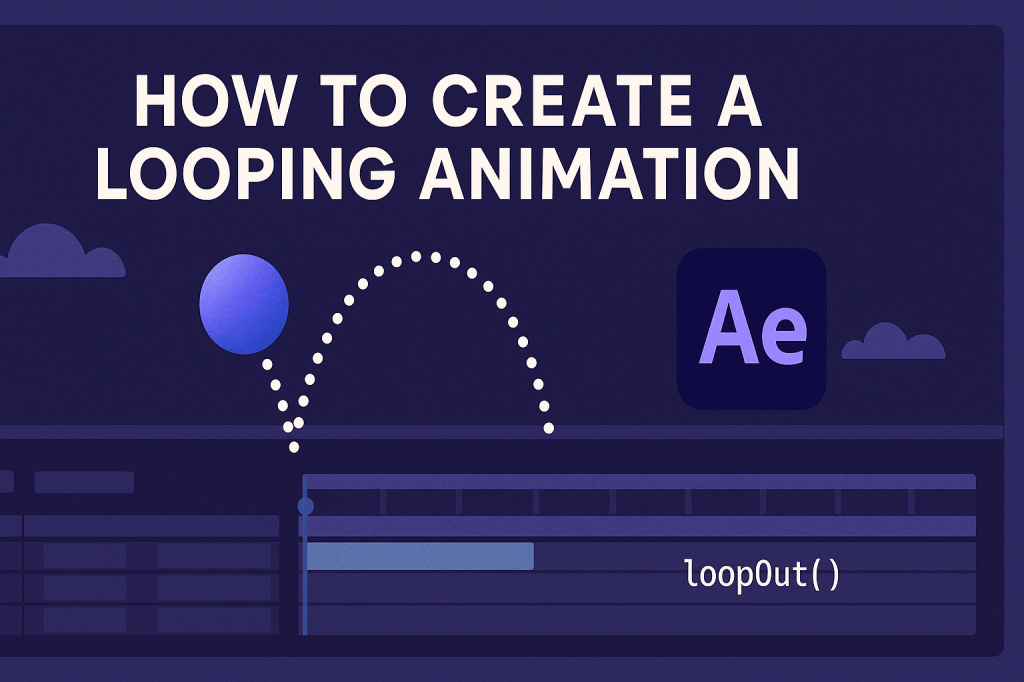
Looping animations are perfect for GIFs, motion backgrounds, and seamless video elements. In After Effects, you can design animations that play endlessly without noticeable jumps. Here’s how to create your own looping animations step by step.
🎬 Step 1: Plan Your Loop
Decide what will loop:
- A moving background (clouds, water, abstract shapes).
- A rotating logo or icon.
- Text or character animation.
👉 Keep the start and end frames in mind so they connect smoothly.
🎨 Step 2: Build the Animation
- Animate your object using keyframes for Position, Scale, or Rotation.
- Keep the motion consistent so it can return to the starting point.
- Example: Rotate a logo 360° for a seamless spin.
⚡ Step 3: Use the Loop Expression
Instead of copying keyframes:
- Alt/Option + click the stopwatch on your animated property.
- Type:
loopOut()
- This repeats the animation infinitely.
👉 Variations:
loopOut("cycle")→ perfect continuous loop.loopOut("pingpong")→ animation plays forward, then backward.
🎬 Step 4: Seamless Background Loops
- Duplicate background elements (like clouds).
- Offset their positions in the timeline.
- Animate them across the screen so when one leaves, the other enters.
👉 Works great for parallax scrolling backgrounds.
✨ Step 5: Exporting Loops
- For social media GIFs → export via Adobe Media Encoder as MP4 or GIF.
- For presentations → export as a MOV with Alpha for transparent looping elements.
- Make sure your duration matches the loop cycle (e.g., 5 or 10 seconds).
🧪 Creative Uses
- Animated GIFs for marketing.
- Looping motion backgrounds.
- Infinite character animations.
- Reusable video overlays.
🎯 Final Thoughts
Looping animations save time and make content reusable across multiple projects. Whether for GIFs or video, After Effects makes it simple with expressions and careful planning.
👉 Want to try it? Download Adobe After Effects free trial and create your first seamless loop today.