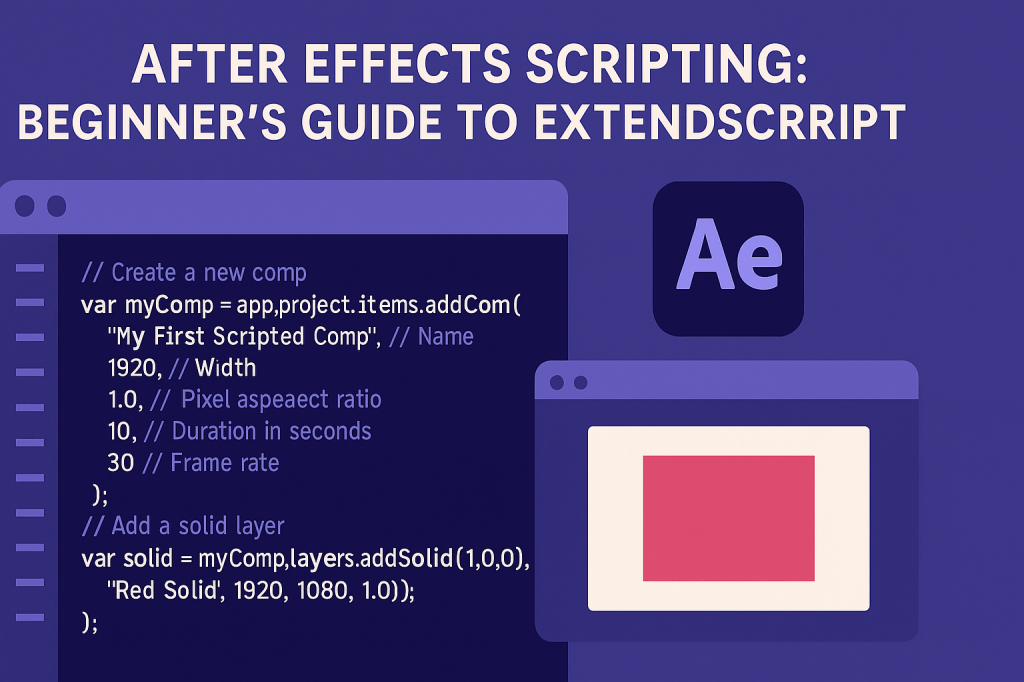
Adobe After Effects isn’t just a motion graphics powerhouse — it’s also a programmable environment. With ExtendScript (Adobe’s JavaScript-based scripting language), you can automate repetitive tasks, create tools, and even build custom workflows. This beginner’s guide introduces you to scripting in After Effects and shows you how to get started.
🎬 What Is ExtendScript?
- ExtendScript is Adobe’s scripting language, built on JavaScript ES3.
- It allows you to control After Effects programmatically:
- Create compositions and layers.
- Apply effects automatically.
- Batch render projects.
- Build custom tools for your workflow.
👉 Think of it as writing instructions for AE instead of clicking through menus.
⚡ Why Learn Scripting in After Effects?
- Save time: Automate boring, repetitive tasks.
- Consistency: Apply the same setup across multiple projects.
- Customization: Create tools that fit your workflow.
- Expandability: Integrate AE with other Adobe apps.
🎨 Step 1: Where to Write Scripts
There are three main ways to write and run scripts:
- ExtendScript Toolkit (legacy)
- Older app included with Adobe installs (CS6 – CC 2019).
- Lets you debug and test scripts.
- Visual Studio Code (modern approach)
- With the ExtendScript Debugger extension, you can write, test, and debug directly in VS Code.
- Script Editor inside AE
- Place your
.jsxscripts in the Scripts folder:- Windows:
C:/Program Files/Adobe/Adobe After Effects/Support Files/Scripts/ - Mac:
/Applications/Adobe After Effects/Scripts/
- Windows:
- Access scripts via File > Scripts in AE.
- Place your
⚡ Step 2: Writing Your First Script
Here’s a simple script to create a new composition:
// Create a new comp
var myComp = app.project.items.addComp(
    "My First Scripted Comp", // Name
    1920, // Width
    1080, // Height
    1.0,  // Pixel aspect ratio
    10,   // Duration in seconds
    30    // Frame rate
);

// Add a solid layer
var solid = myComp.layers.addSolid([1,0,0], "Red Solid", 1920, 1080, 1.0);
👉 When run, this script automatically creates a new comp with a red solid layer.
🎬 Step 3: Running the Script
- Save your file as
myFirstScript.jsx. - Place it in the AE Scripts folder.
- Restart AE.
- Go to File > Scripts > Run Script File… and select it.
Your comp should appear instantly!
✨ Pro Tips
- Use
$.writeln("message")to print debug info to the console. - Keep scripts modular: break large tasks into functions.
- Check Adobe’s Scripting Guide PDF for reference (available on Adobe’s developer site).
- Start small: Automate one task you do daily.
🎯 Final Thoughts
Scripting in After Effects might seem intimidating, but it opens up huge possibilities. Even simple scripts can save you hours of manual work and help you build repeatable workflows.
👉 Want to explore further? Download Adobe After Effects free trial and start experimenting with your first ExtendScript project.





 Adobe After Effects