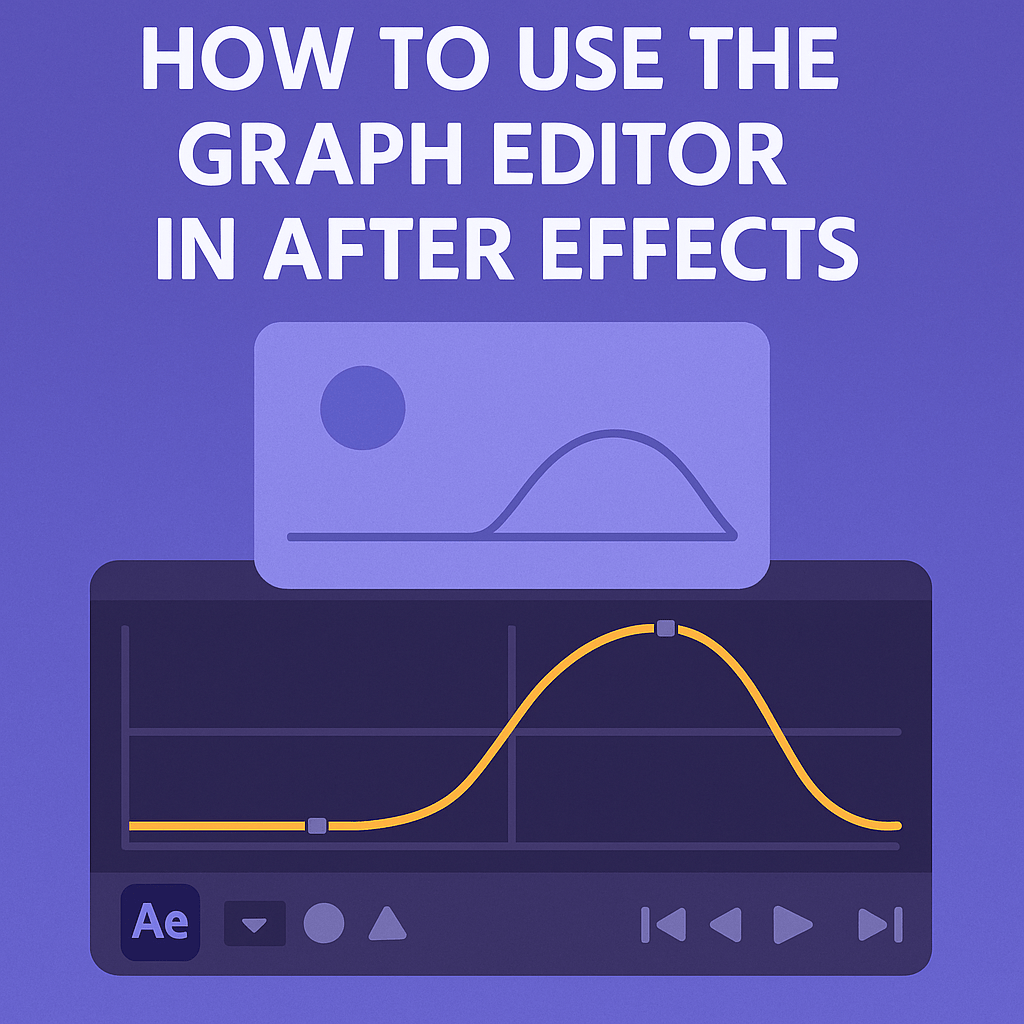
The Graph Editor in After Effects is where you transform basic keyframe animations into smooth, professional motion. It gives you control over timing, speed, and easing, letting your animations feel more natural and polished.
🎬 What Is the Graph Editor?
The Graph Editor visualizes motion through graphs instead of just keyframes.
- Value Graph: Shows changes in property values (position, scale, rotation).
- Speed Graph: Shows how fast an animation is moving over time.
👉 Think of it as the difference between where something moves and how fast it moves.
⚡ Step 1: Enable the Graph Editor
- Select a layer with animated keyframes.
- In the timeline, click the Graph Editor icon.
- Choose between Value Graph and Speed Graph.
🎨 Step 2: Adjust Easing
Raw keyframes often look robotic. Add easing for natural motion:
- Select keyframes → Press F9 for Easy Ease.
- Drag Bezier handles in the Graph Editor to shape acceleration/deceleration.
- Smooth curves = natural movement.
👉 Example: A ball drop feels real when it accelerates downward and slows at the bounce.
🛠️ Step 3: Work with Speed Graph
- High peaks = fast movement.
- Flat lines = slow movement.
- By adjusting curves, you control how quickly objects start and stop.
✨ Step 4: Practical Uses
- Text Animation: Letters sliding in smoothly.
- Logo Reveal: Scaling with bounce easing.
- Motion Graphics: Infographics with fluid growth.
- Camera Moves: Natural pans and zooms.
⚡ Pro Tips
- Shift-drag handles to keep symmetrical easing.
- Use Auto-Select Graph Type to avoid confusion.
- Combine Graph Editor with motion blur for realistic results.
🎯 Final Thoughts
The Graph Editor is one of the most powerful tools in After Effects. Master it, and your animations will instantly look more professional and dynamic.
👉 Ready to practice? Download Adobe After Effects free trial and start shaping motion like a pro.