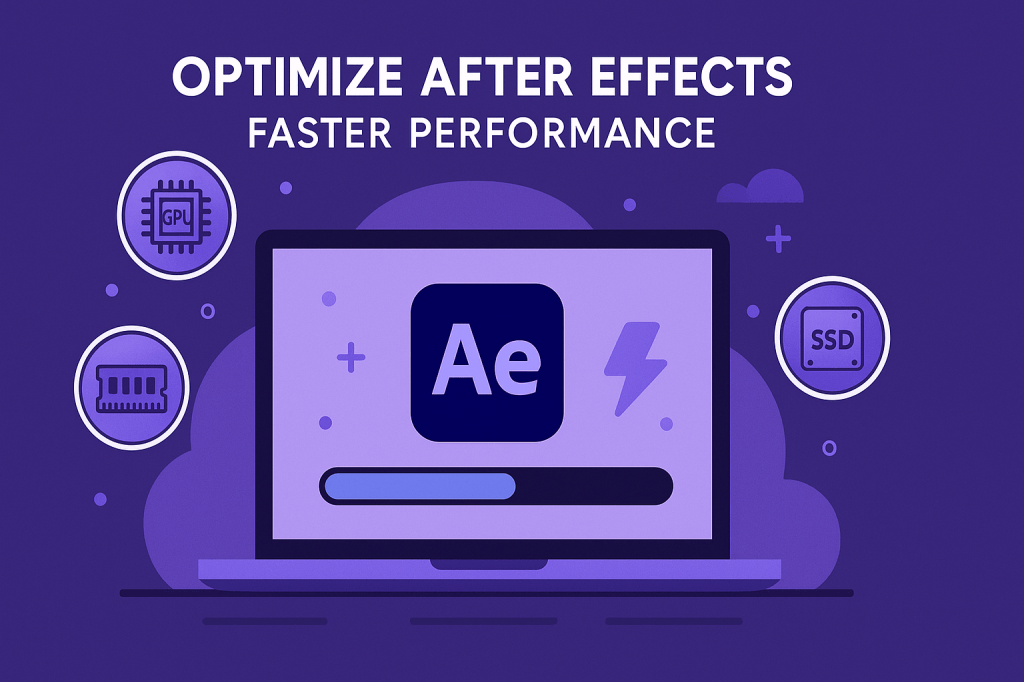
After Effects is powerful, but it can also be demanding on your computer. Slow previews, laggy timelines, and long render times frustrate even experienced motion designers. Luckily, there are proven ways to optimize After Effects for faster, smoother performance.
🖥️ Step 1: Adjust Memory & Performance Settings
- Go to Preferences > Memory & Performance.
- Allocate more RAM to After Effects.
- Reserve less RAM for other applications if AE is your main tool.
👉 Pro Tip: 32 GB RAM is ideal for heavy projects, but AE can run on 16 GB with good optimization.
⚡ Step 2: Enable GPU Acceleration
- Go to File > Project Settings > Video Rendering & Effects.
- Choose Mercury GPU Acceleration (CUDA/Metal).
- Offloads rendering from the CPU to your graphics card.
👉 Essential for effects-heavy or 4K projects.
📂 Step 3: Manage Cache & Storage
- Set your Disk Cache to an SSD for faster previews.
- Increase Disk Cache size under Preferences > Media & Disk Cache.
- Regularly purge cache (Edit > Purge > All Memory & Disk Cache) to prevent slowdowns.
🎬 Step 4: Optimize Your Workflow
- Use Proxies for large video files.
- Pre-render heavy comps and replace them in the timeline.
- Use lower preview resolutions (½ or ¼) during editing.
- Turn off effects and motion blur until the final preview.
🛠️ Step 5: Keep Projects Clean
- Delete unused assets from the Project Panel.
- Pre-compose to simplify timelines.
- Close other applications when working in AE.
- Keep your computer free of background processes.
🎯 Final Thoughts
Performance issues can kill your creative flow. By adjusting settings, using GPU acceleration, and optimizing your workflow, After Effects will run smoother and faster — giving you more time to focus on creativity.
👉 Ready to try it? Download Adobe After Effects free trial and optimize your setup today.