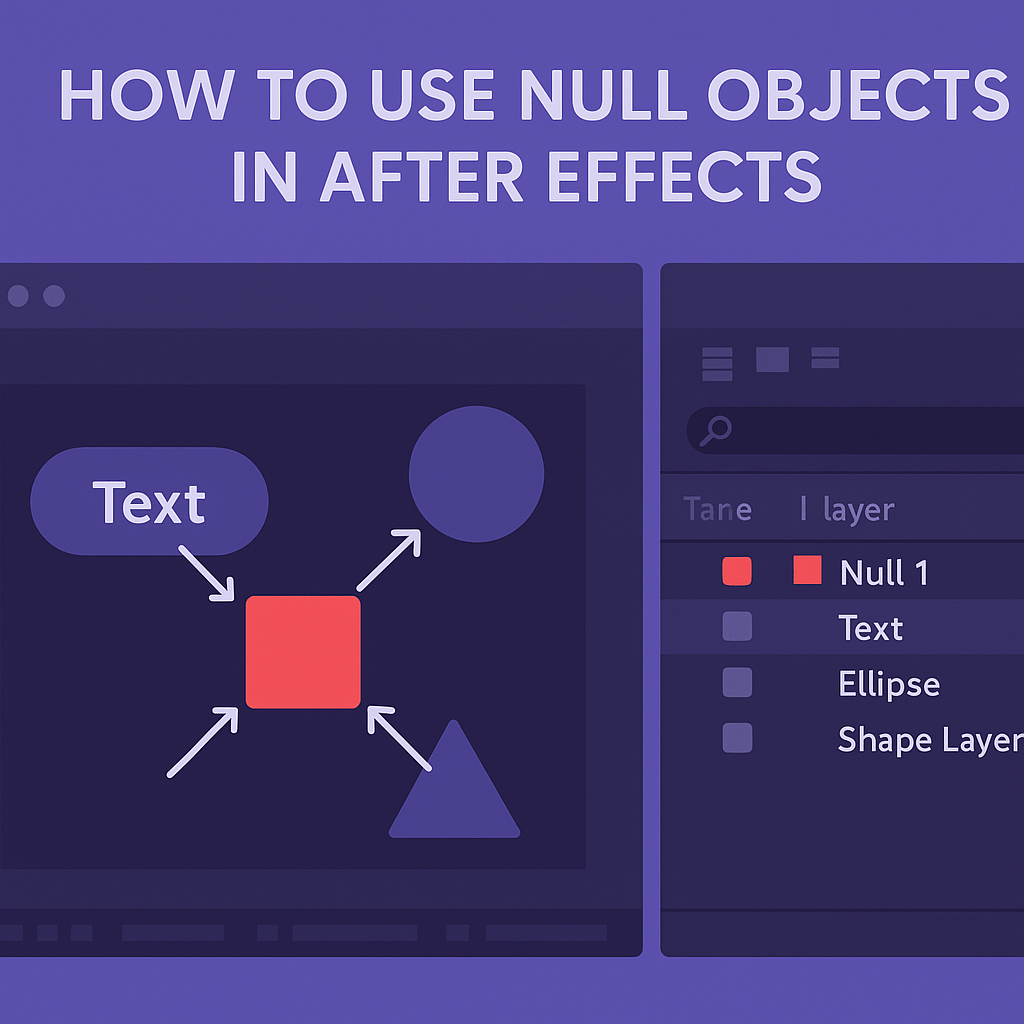
Null objects are invisible layers in After Effects that act as control handles for other layers. They don’t render in the final video but are essential for organizing and simplifying complex animations.
🎬 What Is a Null Object?
- A null object is an empty layer with transform properties (Position, Scale, Rotation, Opacity).
- It can’t be seen in the final render.
- Its main purpose is to control other layers through parenting.
👉 Think of it as a “remote control” for multiple layers.
⚡ Step 1: Create a Null Object
- Go to Layer > New > Null Object.
- A red square appears in the comp window (not visible in render).
- You can now animate its transform properties.
🎨 Step 2: Parent Layers to the Null
- In the Timeline, use the Pick Whip to connect a layer to the null.
- The child layer follows the null’s Position, Scale, and Rotation.
- Example: Parent multiple text layers to one null → move them all at once.
✨ Step 3: Common Uses for Null Objects
- Camera Rigging: Control a 3D camera with a null for smoother movement.
- Logo Animations: Parent parts of a logo to one null for synchronized scaling.
- Motion Tracking: Apply tracking data to a null, then parent graphics to it.
- Control Handles: Use nulls as controllers for puppet pins or shape layers.
⚡ Step 4: Pro Tips
- Rename nulls clearly:
Text_Controller,Camera_Null, etc. - Color-label nulls to distinguish them from visible layers.
- Use expressions with nulls to drive multiple animations at once.
🎯 Final Thoughts
Null objects may be invisible, but they’re among the most powerful tools in After Effects. By using them as control handles, you’ll keep projects organized and animations easy to manage.
👉 Want to try it? Download Adobe After Effects free trial and experiment with null objects today.