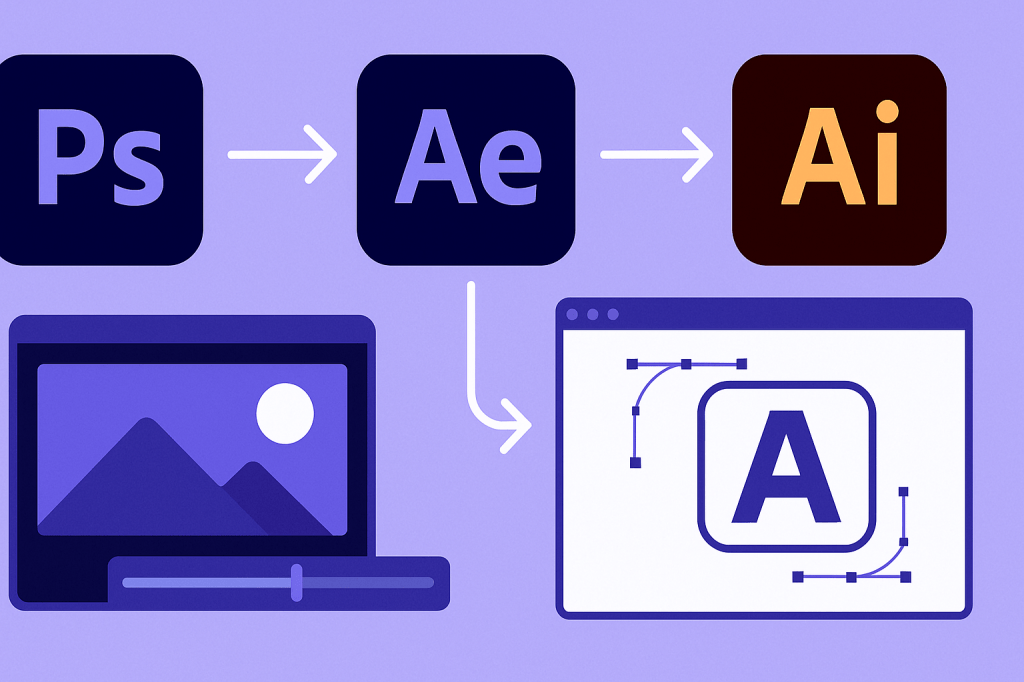
One of the biggest strengths of Adobe After Effects is how well it integrates with other Creative Cloud apps — especially Photoshop and Illustrator. By combining them, you can design in PS or AI and bring those designs to life in After Effects with animation and effects.
🎨 Why Use Photoshop & Illustrator with After Effects?
- Photoshop (PSD): Perfect for layered photo composites, UI mockups, or text graphics.
- Illustrator (AI): Ideal for vector-based logos, icons, and illustrations.
- After Effects: Adds motion and effects to those designs.
👉 Together, they form a complete design + animation pipeline.
🖼️ Step 1: Import Photoshop Files
- File > Import > File > Select your PSD.
- Choose Import As: Composition – Retain Layer Sizes.
- Each Photoshop layer becomes a separate AE layer, ready to animate.
👉 Great for animating UI mockups, character rigs, or photo collages.
🖌️ Step 2: Import Illustrator Files
- File > Import > File > Select your AI file.
- Again, import as Composition – Retain Layer Sizes.
- Convert AI layers to Shape Layers in AE for scalable vector animations.
👉 Perfect for animating logos, infographics, and icons.
⚡ Step 3: Animate Your Artwork
- Apply transforms (Position, Scale, Opacity, Rotation).
- Use Trim Paths on Illustrator line art for animated strokes.
- Add effects like Glow, Drop Shadow, or Motion Blur for polish.
- Sync with audio for logo stingers or explainer animations.
🎬 Step 4: Dynamic Link Workflow
Instead of re-exporting files every time:
- Save your Photoshop/Illustrator file.
- After Effects updates it automatically when changes are made.
- Keep your animation synced with your latest design edits.
🎯 Final Thoughts
Photoshop handles pixel-perfect editing, Illustrator manages clean vectors, and After Effects adds the movement. Together, they make an unbeatable creative workflow for motion design.
👉 Want to try the full pipeline? Download Adobe After Effects free trial and start animating your PS and AI designs today.