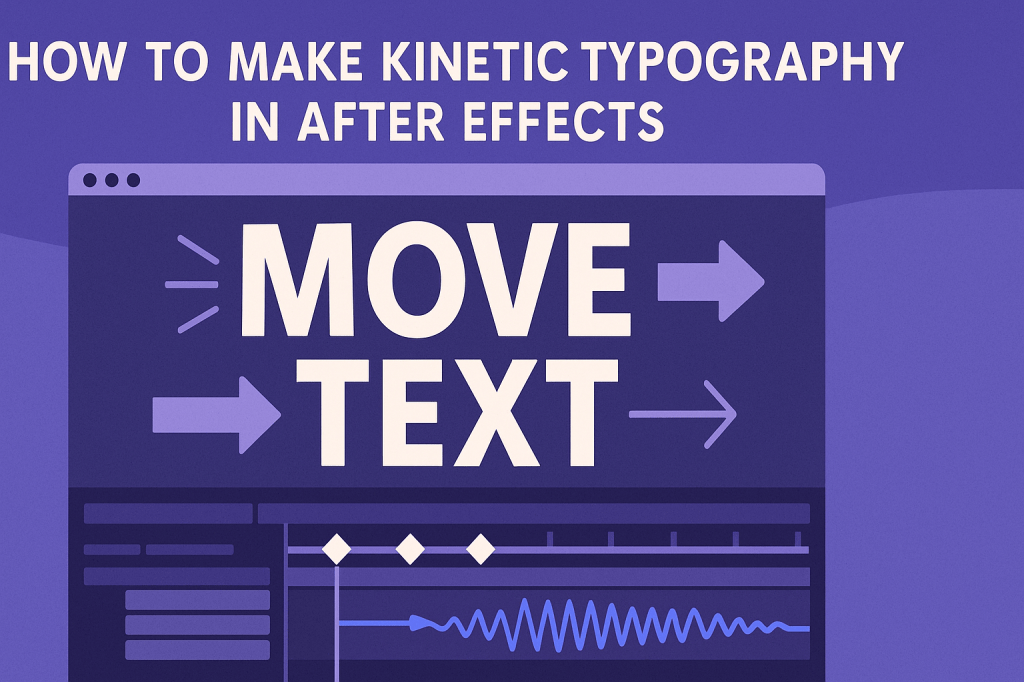
Kinetic typography is the art of making text move in sync with meaning, rhythm, or sound. It’s widely used in ads, music videos, social media content, and explainer videos to grab attention and tell stories visually. After Effects gives you all the tools to create professional-looking kinetic typography animations.
🎬 Step 1: Set Up Your Composition
- Go to Composition > New Composition.
- Set resolution to 1920×1080, frame rate to 24–30 fps, and duration based on your script or audio track.
- Import your audio file if you’re syncing text to voiceover or music.
✍️ Step 2: Add Your Text
- Use the Text Tool (T) to type out your words.
- Split phrases into separate layers for more control.
- Choose fonts with strong readability — bold for keywords, lighter for supporting text.
🎨 Step 3: Animate with Text Animators
After Effects includes built-in text animators that are perfect for kinetic typography:
- Opacity: Reveal words one at a time.
- Position: Slide text in from different directions.
- Rotation: Spin or twist letters into view.
- Tracking: Animate spacing for dramatic emphasis.
👉 Use the Range Selector to animate words or characters individually.
⏱️ Step 4: Sync Text to Audio
- Drag your audio file to the timeline.
- Tap *** (asterisk)** while playing back to add markers in time with the beats or words.
- Align text animations to markers for perfect rhythm.
⚡ Step 5: Add Style & Motion
- Enable Motion Blur for smoother, more natural movement.
- Use Graph Editor for refined easing.
- Apply Trim Paths or shape layer animations for background accents.
- Play with color changes or scaling bursts to highlight key phrases.
🧪 Practice Ideas
- Music Video Lyrics: Animate words popping on each beat.
- Explainer Video: Sync important keywords with voiceover.
- Social Media Ads: Use bold, fast-moving text to grab attention.
🎯 Final Thoughts
Kinetic typography is a fun, impactful way to make text tell a story. With text animators, audio syncing, and motion design principles, you can turn simple words into dynamic visuals.
👉 Want to give it a try? Download Adobe After Effects free trial and create your first kinetic typography project today.