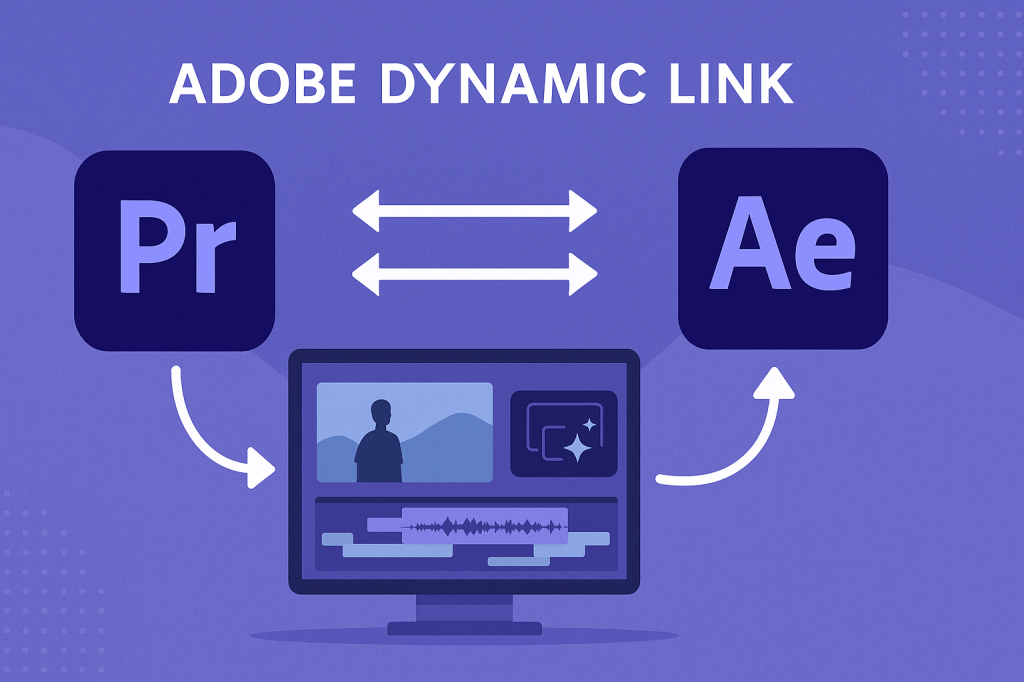
If you edit videos in Premiere Pro and create animations in After Effects, switching between apps can feel like a hassle. That’s where Adobe Dynamic Link comes in. It connects Premiere Pro and After Effects so you can work seamlessly — no need for intermediate exports.
🎬 What Is Adobe Dynamic Link?
Dynamic Link is a feature in Creative Cloud that allows real-time communication between Premiere Pro and After Effects.
- No need to render files when moving between apps.
- Any changes you make in AE instantly update in Premiere.
- Saves time and disk space while keeping projects flexible.
⚡ Step 1: Send Clips from Premiere to After Effects
- In Premiere, right-click a clip → Replace with After Effects Composition.
- AE opens and creates a linked comp.
- Add animations, effects, or titles in AE.
- Save your AE project → Premiere automatically updates.
👉 Pro Tip: Keep AE and Premiere projects in the same folder to avoid missing links.
🎨 Step 2: Use AE Comps in Premiere
- Import an After Effects project file (.aep) into Premiere.
- Choose which composition you want to bring in.
- Drop it directly onto your Premiere timeline.
🔧 Step 3: Best Practices for Smooth Workflow
- Keep project names consistent (avoid renaming files mid-project).
- Pre-compose complex AE layers for better performance.
- Use low-res previews in AE to speed up playback in Premiere.
- Keep your AE project organized — it all flows into Premiere.
⚡ When to Use Dynamic Link
- Adding animated titles or lower thirds to edited video.
- Creating custom transitions in AE for Premiere edits.
- Enhancing Premiere edits with AE visual effects.
- Keeping projects lightweight without exporting giant video files.
🎯 Final Thoughts
Dynamic Link bridges Premiere Pro and After Effects into a single workflow. Instead of bouncing between exports, you can edit in Premiere and animate in AE — all in real time.
👉 Ready to try it? Download Adobe After Effects free trial and experience seamless integration with Premiere Pro.