Animating text is one of the most common — and fun — things to do in After Effects. From simple fades to complex kinetic typography, After Effects gives you endless ways to make words move. Here’s a beginner-friendly guide to get you started.
✍️ Step 1: Create a New Composition
- Go to Composition > New Composition.
- Set resolution (1920×1080 is standard), frame rate (24–30 fps), and duration (5–10 seconds for text animations).
- Click OK.
🔤 Step 2: Add Your Text
- Select the Type Tool (T).
- Click inside the Composition window and type your text.
- Adjust font, size, and color in the Character panel.
👉 Pro Tip: Use bold fonts for titles and thinner fonts for captions to keep animations readable.
🎬 Step 3: Choose an Animation Method
There are two main ways to animate text in After Effects:
1. Animate with Keyframes
- Open your text layer’s Transform properties (P, S, R, T).
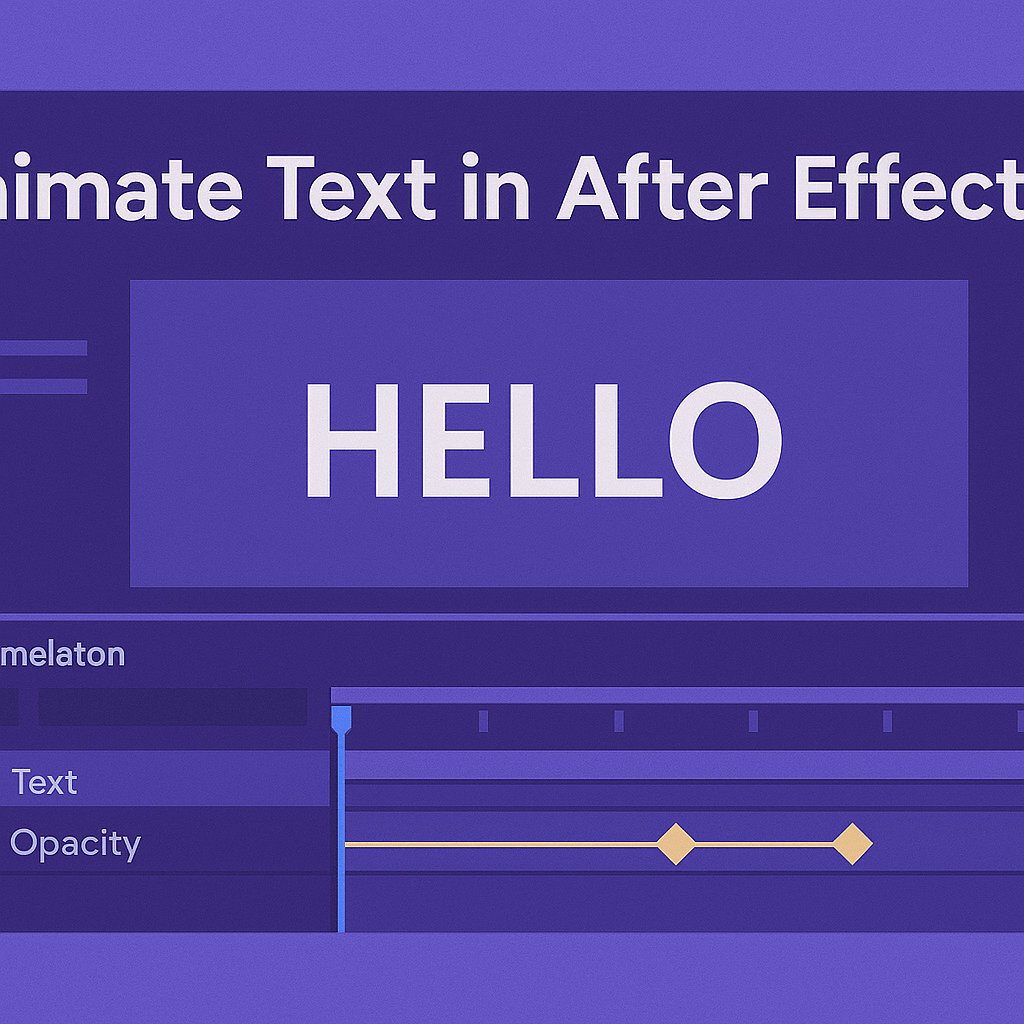
- Set keyframes for Position, Opacity, Scale, or Rotation.
- Example: Fade in by setting Opacity = 0% at frame 0 and 100% at frame 20.
2. Use Text Animators
- Twirl down your text layer → click Animate > [Choose Property].
- Popular options: Opacity, Position, Rotation, Tracking.
- Adjust the Range Selector to animate letters individually.
🎨 Step 4: Add Easing for Smooth Motion
Raw keyframes can look stiff. Apply easing for natural animation:
- Select your keyframes → Press F9 for Easy Ease.
- Use the Graph Editor to fine-tune motion speed.
👉 Example: Letters can start slow, accelerate, then ease out for a cinematic effect.
⚡ Step 5: Enhance with Effects
- Motion Blur: Toggle for realistic movement.
- Glow or Stroke: Add emphasis for titles.
- 3D Text: Enable 3D layer and add camera movement for depth.
🧪 Practice Ideas
- Typewriter Effect: Animate Opacity with Range Selector for one letter at a time.
- Bounce-In Titles: Animate Position + apply easing for a playful look.
- Kinetic Typography: Animate Tracking or Rotation synced to voiceover or music.
🎯 Final Thoughts
Text animation is one of the fastest ways to make your videos look professional. Start with simple fades and moves, then experiment with text animators for advanced effects.
👉 Ready to try it yourself? Download Adobe After Effects free trial and animate your first title today.